Sharepoint Site Setup
In SharePoint Site setup (DCS) you need to connect Dynamics 365 CE with SharePoint using an AppRegistration.
Information required are:
| Field | Description |
|---|---|
| Application (client) ID | The Azure application client ID. |
| Client Secret | Azure application Client Secret. |
| Tenant Id | The Azure tenant ID to which connect the client (where SharePoint Site is present) |
Pre-requisites:
- Configure SharePoint Site Integration – refer to Benefits of document management with SharePoint integration - Power Platform | Microsoft Learn
- Create an App Registration and configure it as documented in DocSolutions for Sharepoint (BC)
- Setup user must have System Administrator + DocSolutions Admin roles assigned
- Application user must have DocSolutions User Role assigned.
Important for error comunication:
DocSolutions will notify errors creating Sharepoint folders or license messages with in-app notification; this feature must be enabled in all the apps where the messages must be shown.
From Power App portal: open the app (all apps used by customer with DocSolutions use), click on settings, select Features tab and enable In-app notifications flag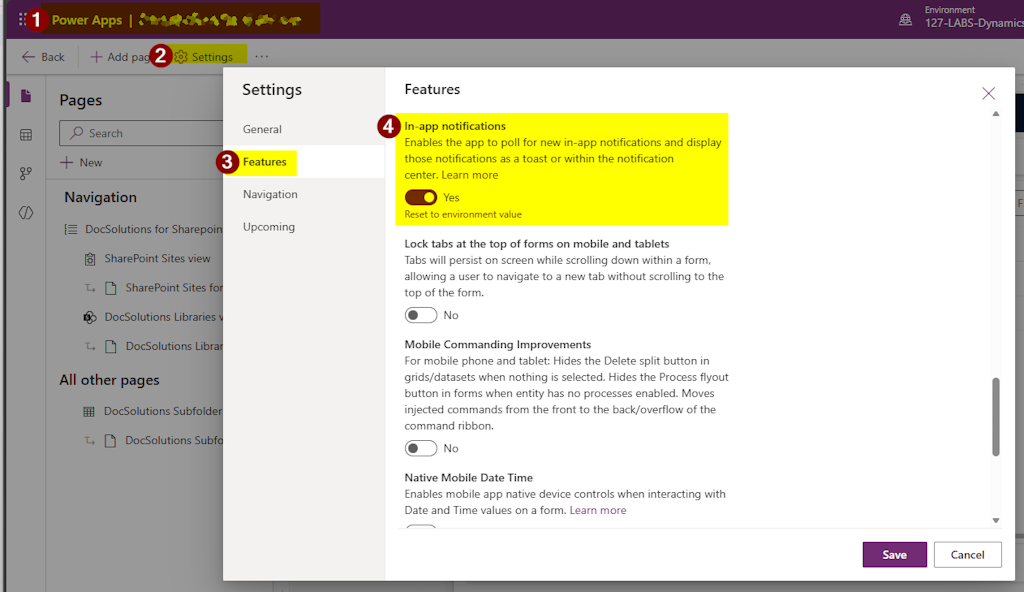
Setup and Sharepoint Site Configuration
- Open DocSolutions App and go to SharePoint Sites
- Open the Site where DocSolutions must be configured (can be more than one)
- Open DocSolutions tab and configure the following fields:
- Client ID
- Client Secret
- Tenant ID
Once the record is saved the client secret will be encypted and SharePoint Site ID will be populated.
Message Status indicates the connection test result; if an error message is shown, please correct the configuration accordingly.
NOTE
A valid license of DocSolutions for SharePoint must be activated for the customer based on tenant ID.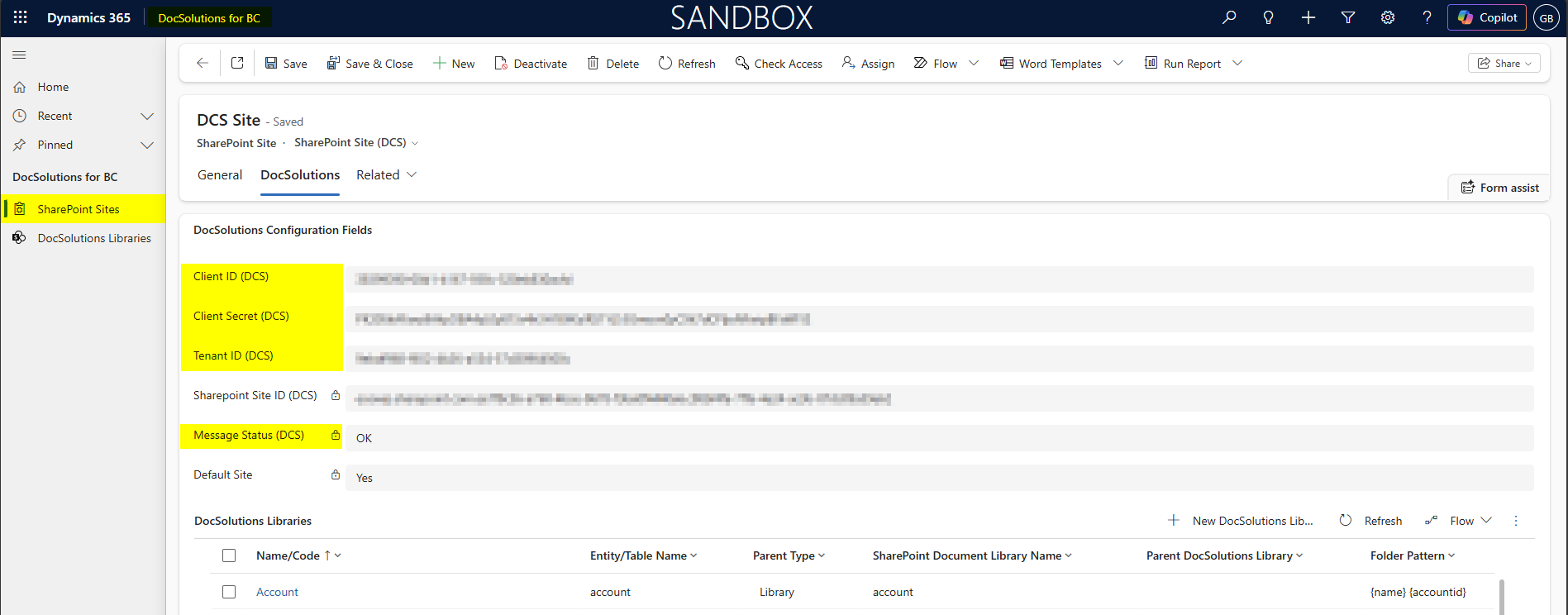
DocSolutions Library Setup
Each entity in Dynamics 365 CE can be configured to use DocSolutions for CE; in case the entity is not configured in Document Management, it will be added.
DocSolutions for CE can create folder and subfoders in SharePoint site, but Document Libraries must be created with the standard functionality or manually in site.
Library Configuration
- Open DocSolution Libraries link
- Add new record (of type DocSolutions Librariy
- The following fields must be populated:
| Name/Code | Code or Name of DocSolutions Library |
|---|---|
| Entity/Table name | Entity/Table logical name |
| SharePoint Site | SharePoint Site from list of existing SharePoint Sites |
| Folder Pattern | String composed from a mix of fields values and fixed text; fields (logical name) must be specified in curly brackets; e.g. {fieldname}; these fields must be set as required to have the correct folder name compiled at creation |
| Parent Type | Can be: Library: the folder is created under the specified Document Library Parent Record: the folder is created under the folder of a parent record folder (under a fixed subfolder – eg. account/<accountFolder>/quotes/<quoteFolder> or directly under the record folder- eg. account/<accountFolder>/<quoteFolder> in case of quote) |
| If Parent Type = Library | SharePoint Document Library Name: must exists in Sharepoint; is the SharePoint Library name where the folders are created |
| If Parent Type = Parent Record | Parent DocSolutions Library: parent DocSolution Library that create the parent folder (required) Parent Folder: fixed folder name (optional) Parent Field: field logical name that link entity record with parent record |
| Integration Key | Optional field indicating the integration field used for BC-CE integration |
| Integration Path Field | Required if folders must be shared between CE and BC; in account and product tables are present eosapp_dcspath fields ready for this scope; this field values must be synchronized between the two systems |
| Message Status (DCS) | Will be automatically filled with configuration result (OK or error) |
- In addition fixed subfolders can be created in the underying subgrid.
Example for DCS Library with Parent Type = Library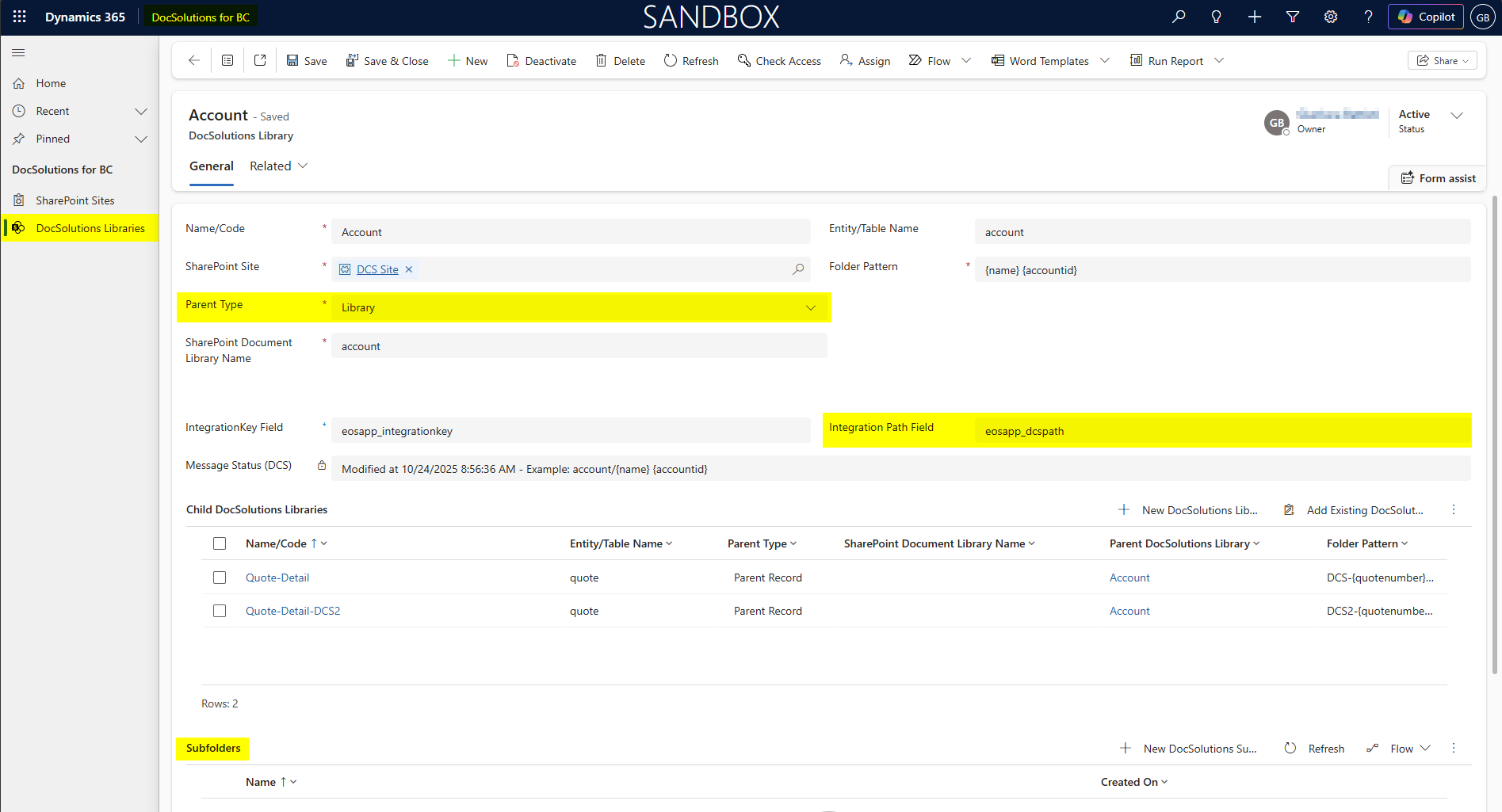
Example for DCS Library with Parent Type = Parent Record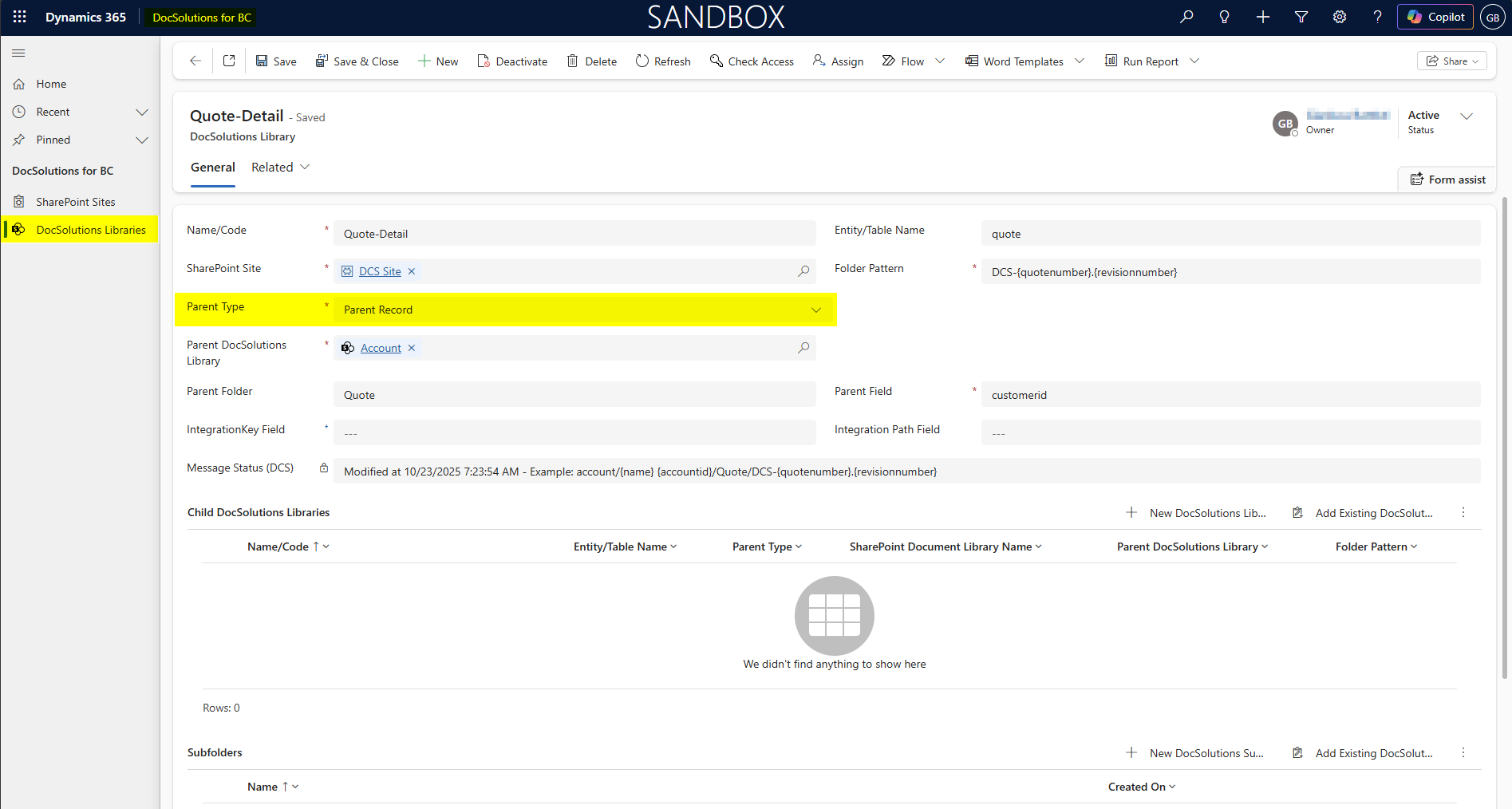
Rule Validator
The Rule Validator tab allows validation rules to be applied to the target record before the DocSolutions configuration is completed. Set Use Rule Validator to Yes and enter the rule definition in Rule Validator Json.
The JSON is evaluated in two phases:
- The
whencondition group determines whether the validations apply. If it is omitted or contains no conditions, it evaluates to true. Conditions useandby default; setlogictoorto require at least one condition to be true. - If
whenis false,otherwisecontrols the result. The default issuccess, so the configuration continues andvalidationsare not evaluated. Set it toerrorto stop the configuration and optionally provideotherwiseMessage. - If
whenis true, the rules invalidationsare evaluated. All failed validations are returned together; if at least one fails, the configuration is skipped.
Example for DCS Library - Rule Validator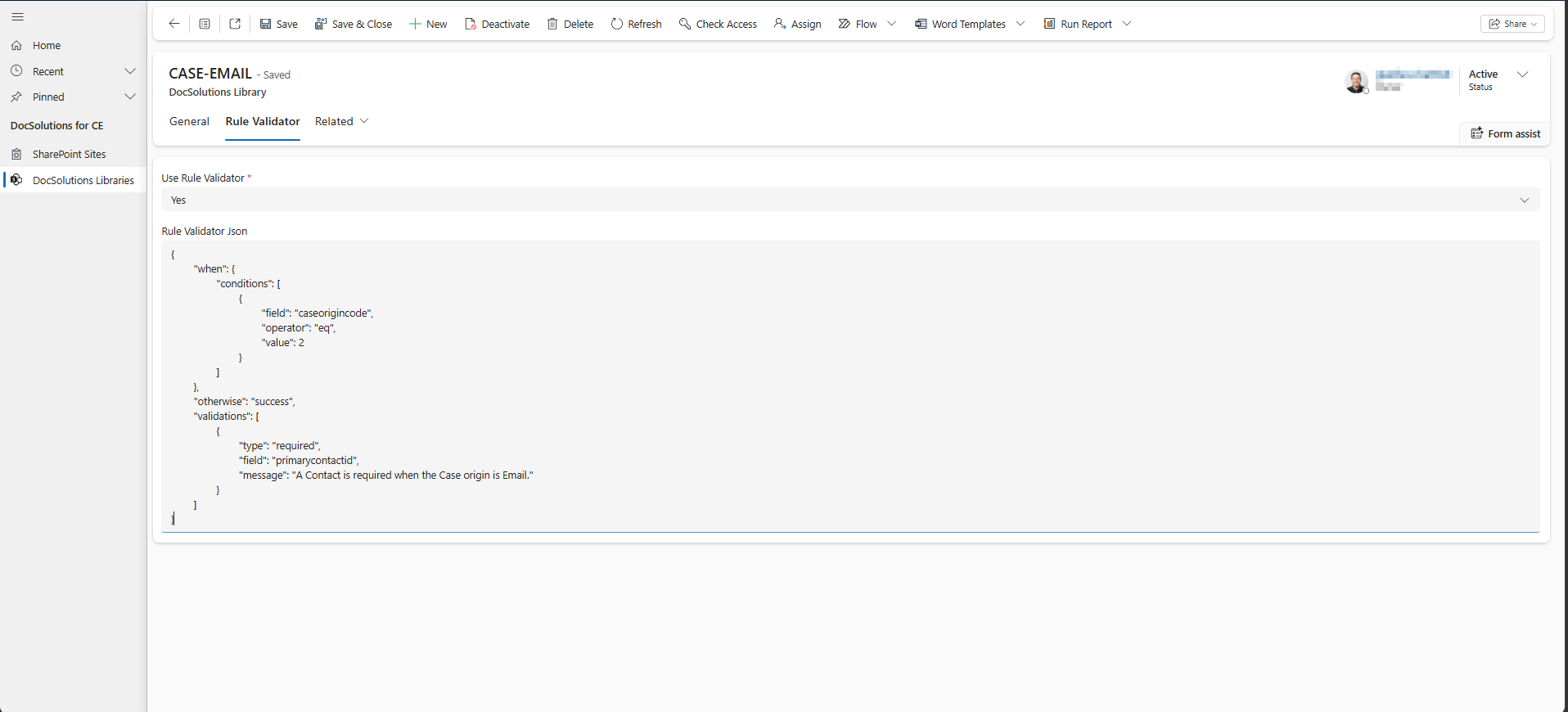
How when and validations work
The when section is a gate for the validation rules. It describes the situation in which the checks in validations must be applied. It does not validate the record by itself. For example, a rule can say: “only when the Case origin is Email, require a Contact”.
The validations section contains the checks to execute after the when section is true. A required validation is useful for lookups: the field must be present and must contain a value. In the example below, caseorigincode is the standard Case Origin option set and primarycontactid is the Case Contact lookup. Replace 2 with the option-set value for Email if it is different in the target environment.
{
	"when": {
		"conditions": [
			{
				"field": "caseorigincode",
				"operator": "eq",
				"value": 2
			}
		]
	},
	"otherwise": "success",
	"validations": [
		{
			"type": "required",
			"field": "primarycontactid",
			"message": "A Contact is required when the Case origin is Email."
		}
	]
}
In this example, a Case with origin Email enters validations; if no Contact is indicated, the validation fails and the DocSolutions configuration is skipped. A Case with any other origin does not enter validations, and the configuration continues because otherwise is success.
Configuration Properties
| Property | Description |
|---|---|
when.logic | Logical operator for the conditions: and or or. The default is and. |
when.conditions[].field | Logical name of the Dataverse field to read from the target record. |
when.conditions[].operator | Comparison operator: eq, neq, null, or notnull. |
when.conditions[].value | Value used by eq or neq; it can represent text, numbers, dates, booleans, option-set values, money, or an entity reference GUID. |
otherwise | Result when when is false: success (default) or error. |
otherwiseMessage | Optional error message returned when otherwise is error. |
validations[].type | Validation type: required or regex. |
validations[].field | Logical name of the field to validate. |
validations[].message | Optional message returned when the validation fails. |
validations[].parameters.pattern | Regular expression used by a regex validation. |
validations[].parameters.ignoreCase | Optional Boolean value for a regex validation. The default is true. |
For a required validation, the field must be present and must not be null or blank. A regex validation is skipped when the field is absent, null, or blank; when a value is present, the pattern parameter is required and must match the value according to the regular expression.
The JSON can be left empty when no validation is required. Invalid JSON or invalid regular-expression parameters return an error. An unsupported condition operator evaluates to false and returns the configured otherwise result.
Feedback
Was this page helpful?
Glad to hear it! Please tell us how we can improve.
Sorry to hear that. Please tell us how we can improve.