Compensation procedure (CVC)
Compensation Procedure
The offset can be performed from the following areas:
- from the customer or vendor card
- from the journal
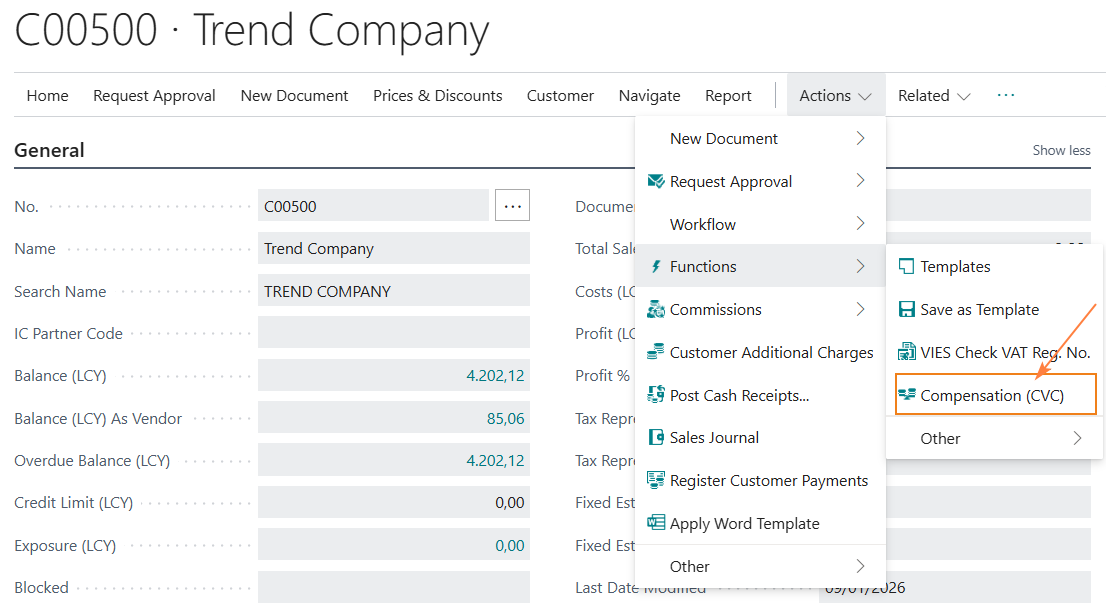
Compensation from Customer/Vendor Card
From the Customer/Vendor Card, you can access the offset page using the “Compensation (CVC)” action.
Compensation from the Journal
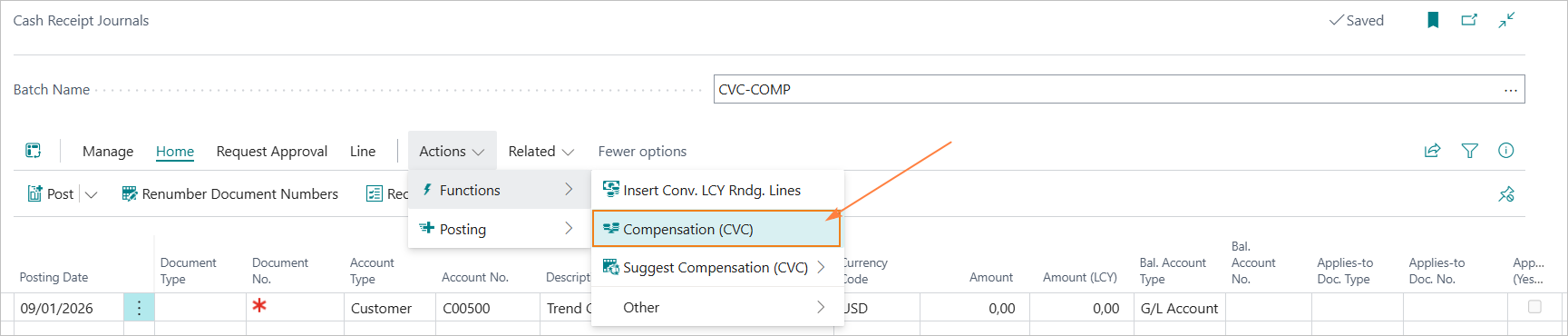
The compensation page can also be opened from the journal using the same menu option.
Note
If the fields “Account Type” and “Account No.” are filled in the journal with customer or vendor references, the offset page will automatically open filtered by the customer/vendor code entered.
Compensation Page
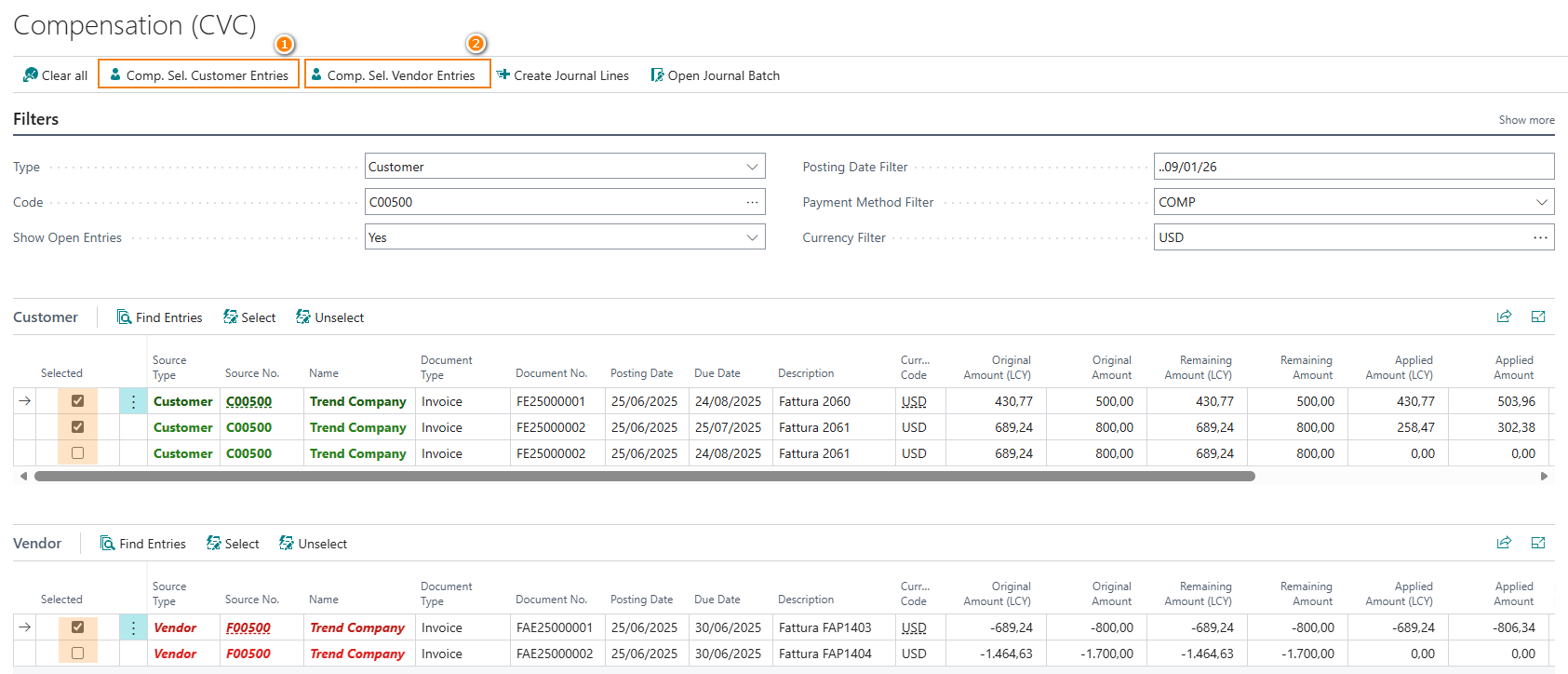
The offset page displays the customer/vendor entries to be offset based on the filters applied. It is possible to filter the entries displayed using the following parameters:
- Open/Closed entries
- Posting date
- Payment method code
- Currency code
The compensation page will display customer and vendor ledger entries according to the filters set.
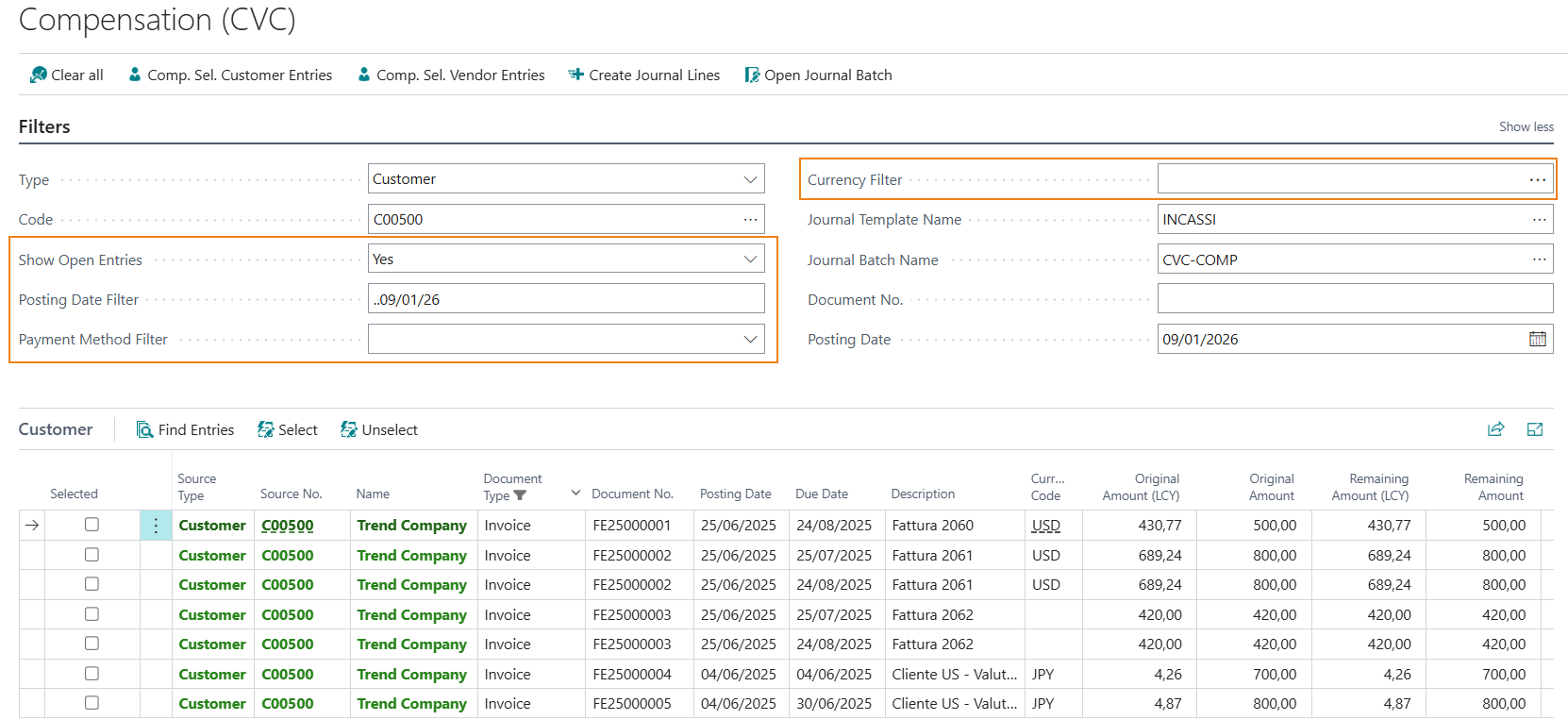
Below is a description of the main fields on the page.
| Field | Description |
|---|---|
| Show Open Entries | Opzions: Yes, No, All . |
| Posting Date Filter | Allows filtering by posting date. |
| Payment Method Code Filter | Filter by payment method. |
| Filtro Cod. valuta | Filter by currency code. |
| Default Journal Name | Shows the journal set up for postings. |
| Default Batch Name | Displays the batch set up for postings. |
| Documento No. | Allows defining the temporary document number to be used for postings when not set on the journal batch. If a No. Series is set in the batch setup, this field is not used. |
| Postong Date | Date used for posting. When offsetting from the customer/vendor card, the work date is suggested. When offsetting from the journal, the posting date from the batch line is proposed. |
Compensation Methods
Manual Application
It is possible to manually select the entries to be offset using the “Selected” field.
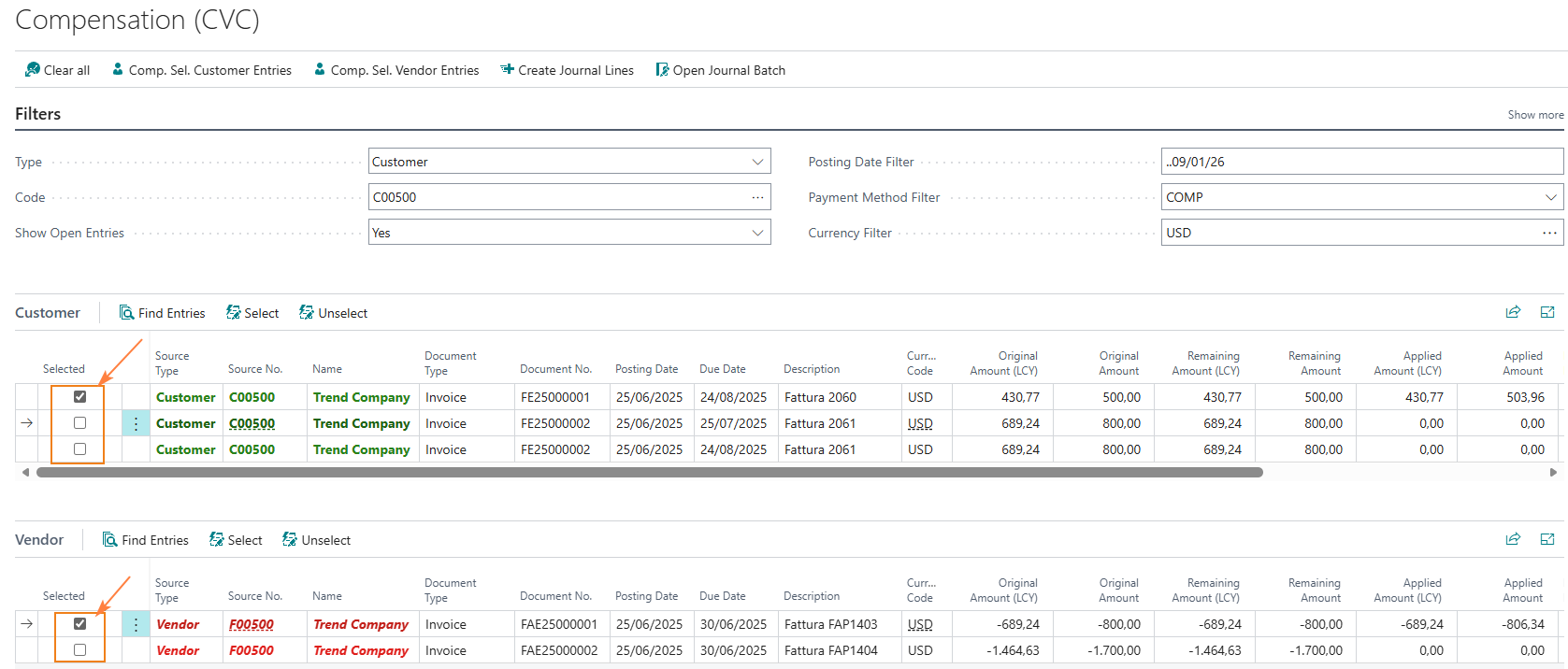
When an entry is selected, the fields “Applied Amount” and “Applied Amount (LCY)” are automatically populated.
Note
Even if the “Applied Amount” field is automatically filled with an amount higher than the remaining amount (as it is based on the available balance), during the posting proposal the value will be automatically adjusted.
**Automatic Application (Comp. Sel. Customer Entries/Comp. Sel. Vendor Entries)**
Using the “Comp. Sel. Customer Entries”/“Comp. Sel. Vendor Entries” actions, an automatic application proposal is generated, based on customer/vendor entries sorted by ascending due date.
**“Balance” Mode**
If only entries from one section are selected (e.g., Customer section) and the “Suggest Application Lines” action is executed, the system will propose the settlement of the selected entries and insert a single balancing line in the opposite section (Vendor in the example), without applying it to any entry.
The compensation is executed only if the final balance of the destination party does not become negative.
Create Journal Lines
The “Create Journal Lines” action proposes the offset of the selected entries. As mentioned above, when only entries from one section are selected (“balance” mode), the system suggests the closing lines for the selected entries and one balancing posting line in the opposite section.
Open Journal Batch.
The “Open Journal Batch” action allows accessing the batch used for the offset postings.
Clear All
The “Clear All” action clears the selections made, allowing you to make new selections for the offset.
Feedback
Was this page helpful?
Glad to hear it! Please tell us how we can improve.
Sorry to hear that. Please tell us how we can improve.