Sharepoint Site Setup
In SharePoint Site setup (DCS) you need to connect Dynamics 365 CE with SharePoint using an AppRegistration.
Information required are:
| Field | Description |
|---|---|
| Application (client) ID | The Azure application client ID. |
| Client Secret | Azure application Client Secret. |
| Tenant Id | The Azure tenant ID to which connect the client (where SharePoint Site is present) |
Pre-requisites:
- Configure SharePoint Site Integration – refer to Benefits of document management with SharePoint integration - Power Platform | Microsoft Learn
- Create an App Registration and configure it as documented in DocSolutions for Sharepoint (BC)
- Setup user must have System Administrator + DocSolutions Admin roles assigned
- Application user must have DocSolutions User Role assigned.
Important for error comunication:
DocSolutions will notify errors creating Sharepoint folders or license messages with in-app notification; this feature must be enabled in all the apps where the messages must be shown.
From Power App portal: open the app (all apps used by customer with DocSolutions use), click on settings, select Features tab and enable In-app notifications flag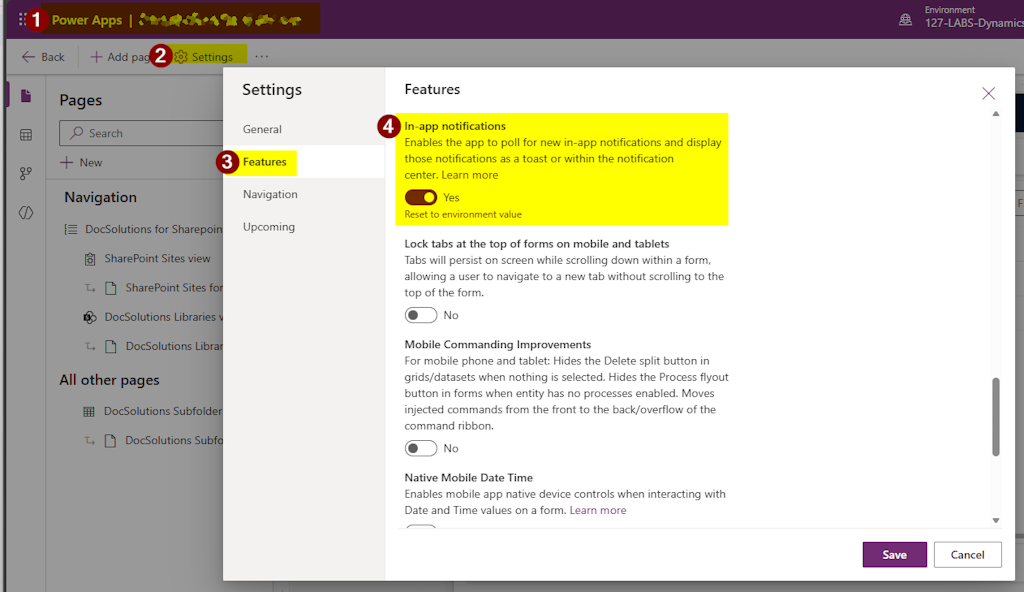
Setup and Sharepoint Site Configuration
- Open DocSolutions App and go to SharePoint Sites
- Open the Site where DocSolutions must be configured (can be more than one)
- Open DocSolutions tab and configure the following fields:
- Client ID
- Client Secret
- Tenant ID
Once the record is saved the client secret will be encypted and SharePoint Site ID will be populated.
Message Status indicates the connection test result; if an error message is shown, please correct the configuration accordingly.
NOTE
A valid license of DocSolutions for SharePoint must be activated for the customer based on tenant ID.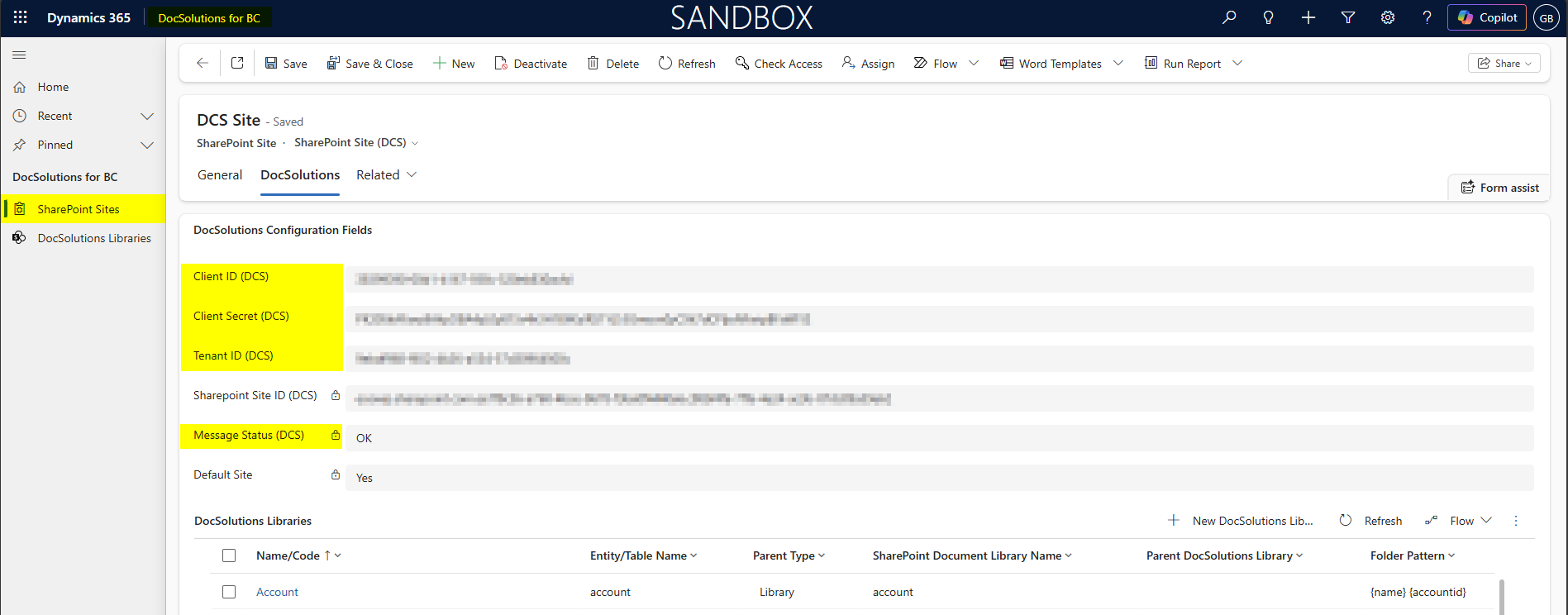
DocSolutions Library Setup
Each entity in Dynamics 365 CE can be configured to use DocSolutions for CE; in case the entity is not configured in Document Management, it will be added.
DocSolutions for CE can create folder and subfoders in SharePoint site, but Document Libraries must be created with the standard functionality or manually in site.
Library Configuration
- Open DocSolution Libraries link
- Add new record (of type DocSolutions Librariy
- The following fields must be populated:
| Name/Code | Code or Name of DocSolutions Library |
|---|---|
| Entity/Table name | Entity/Table logical name |
| SharePoint Site | SharePoint Site from list of existing SharePoint Sites |
| Folder Pattern | String composed from a mix of fields values and fixed text; fields (logical name) must be specified in curly brackets; e.g. {fieldname}; these fields must be set as required to have the correct folder name compiled at creation |
| Parent Type | Can be: Library: the folder is created under the specified Document Library Parent Record: the folder is created under the folder of a parent record folder (under a fixed subfolder – eg. account/<accountFolder>/quotes/<quoteFolder> or directly under the record folder- eg. account/<accountFolder>/<quoteFolder> in case of quote) |
| If Parent Type = Library | SharePoint Document Library Name: must exists in Sharepoint; is the SharePoint Library name where the folders are created |
| If Parent Type = Parent Record | Parent DocSolutions Library: parent DocSolution Library that create the parent folder (required) Parent Folder: fixed folder name (optional) Parent Field: field logical name that link entity record with parent record |
| Integration Key | Optional field indicating the integration field used for BC-CE integration |
| Integration Path Field | Required if folders must be shared between CE and BC; in account and product tables are present eosapp_dcspath fields ready for this scope; this field values must be synchronized between the two systems |
| Message Status (DCS) | Will be automatically filled with configuration result (OK or error) |
- In addition fixed subfolders can be created in the underying subgrid.
Example for DCS Library with Parent Type = Library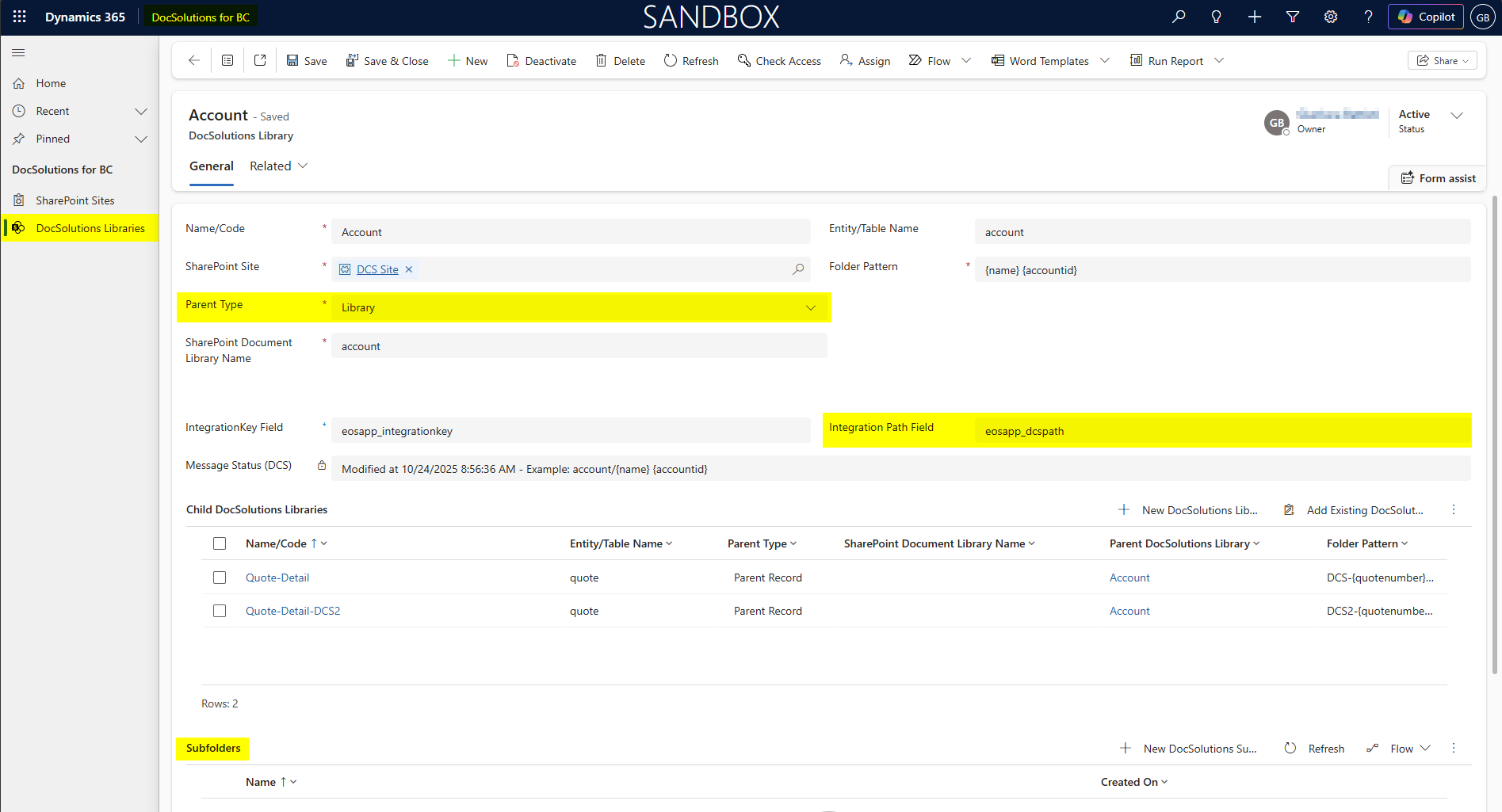
Example for DCS Library with Parent Type = Parent Record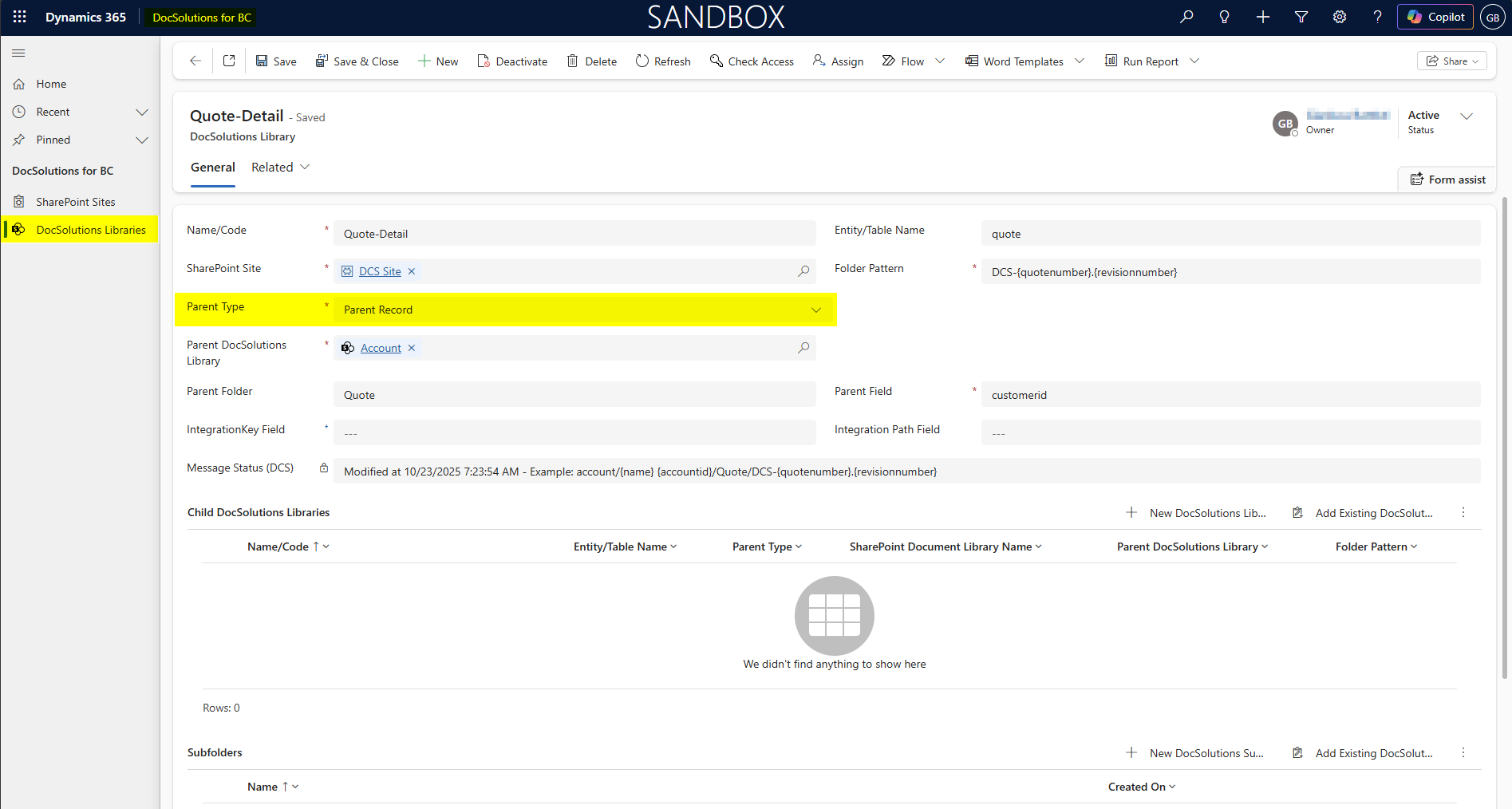
Feedback
Was this page helpful?
Glad to hear it! Please tell us how we can improve.
Sorry to hear that. Please tell us how we can improve.