BC Setup
Below are the recommended steps in Business Central:
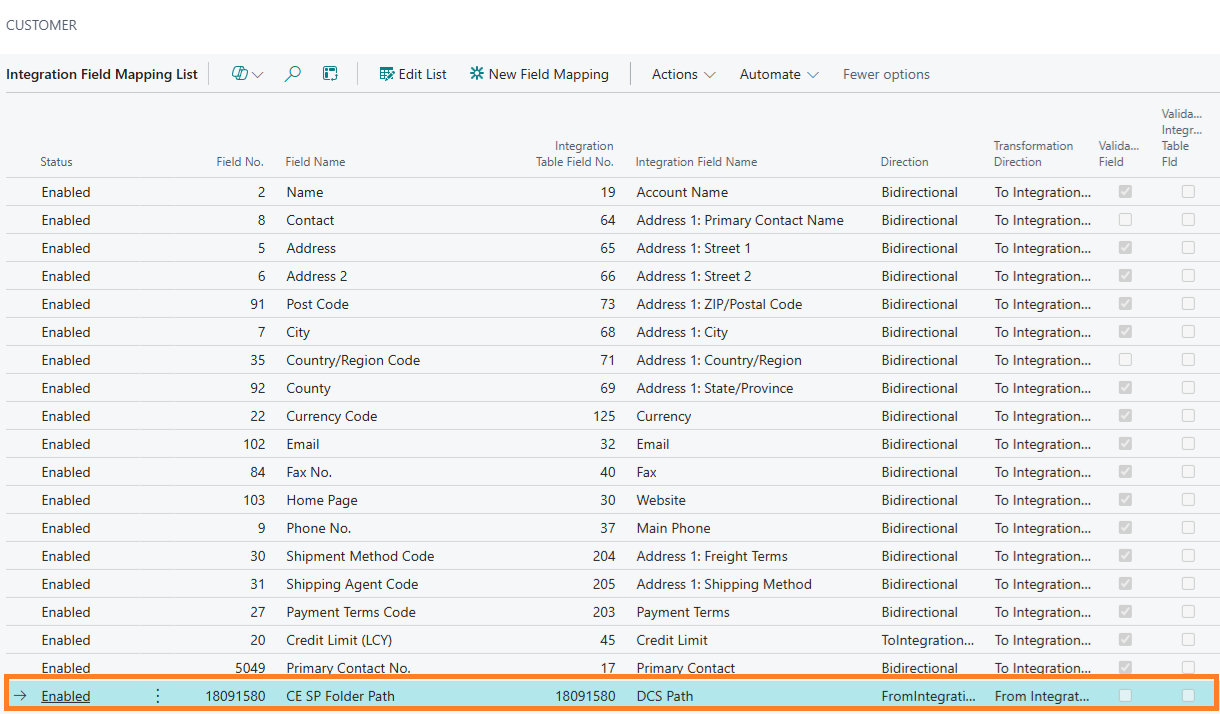
Verify Dataverse integration
- Open the standard BC↔Dataverse integration setup and ensure the map includes the folder path field coming from CE (exposed as CE SP Folder Path or equivalent).
- If needed, force an initial sync to populate BC records.
DocSolution – SharePoint Setup
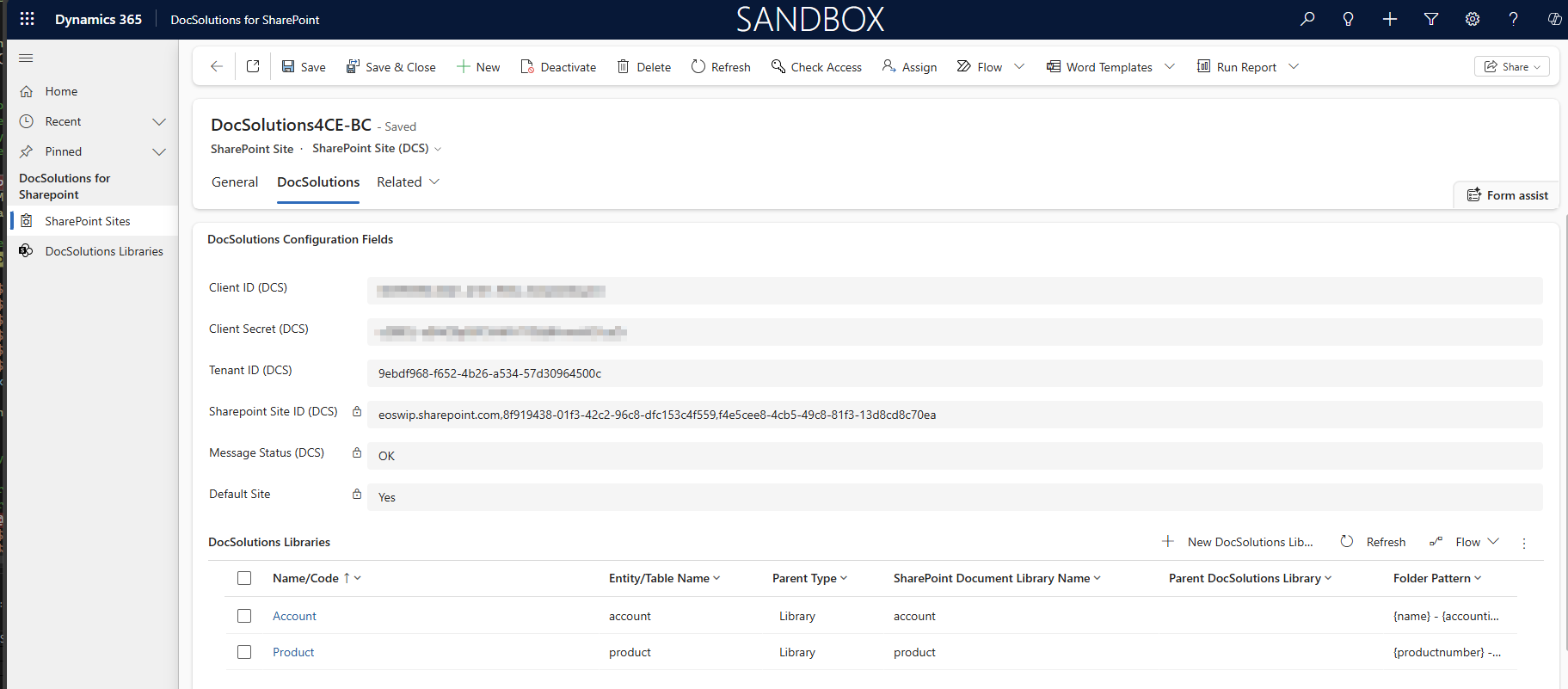
- In DocSolution SharePoint Setup, enter Tenant ID, Client ID and Client Secret (same values used in CE).
- Test the connection; proceed only when valid.
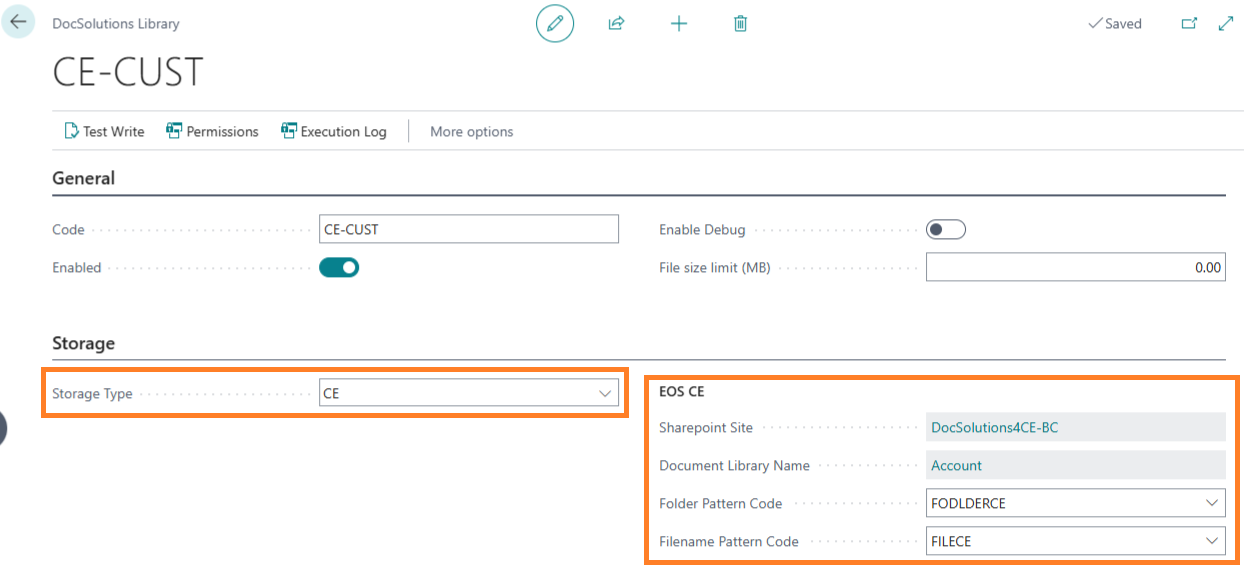
Define Library (Storage “CE”)
- Create a new DocSolution Library and set Storage = CE.
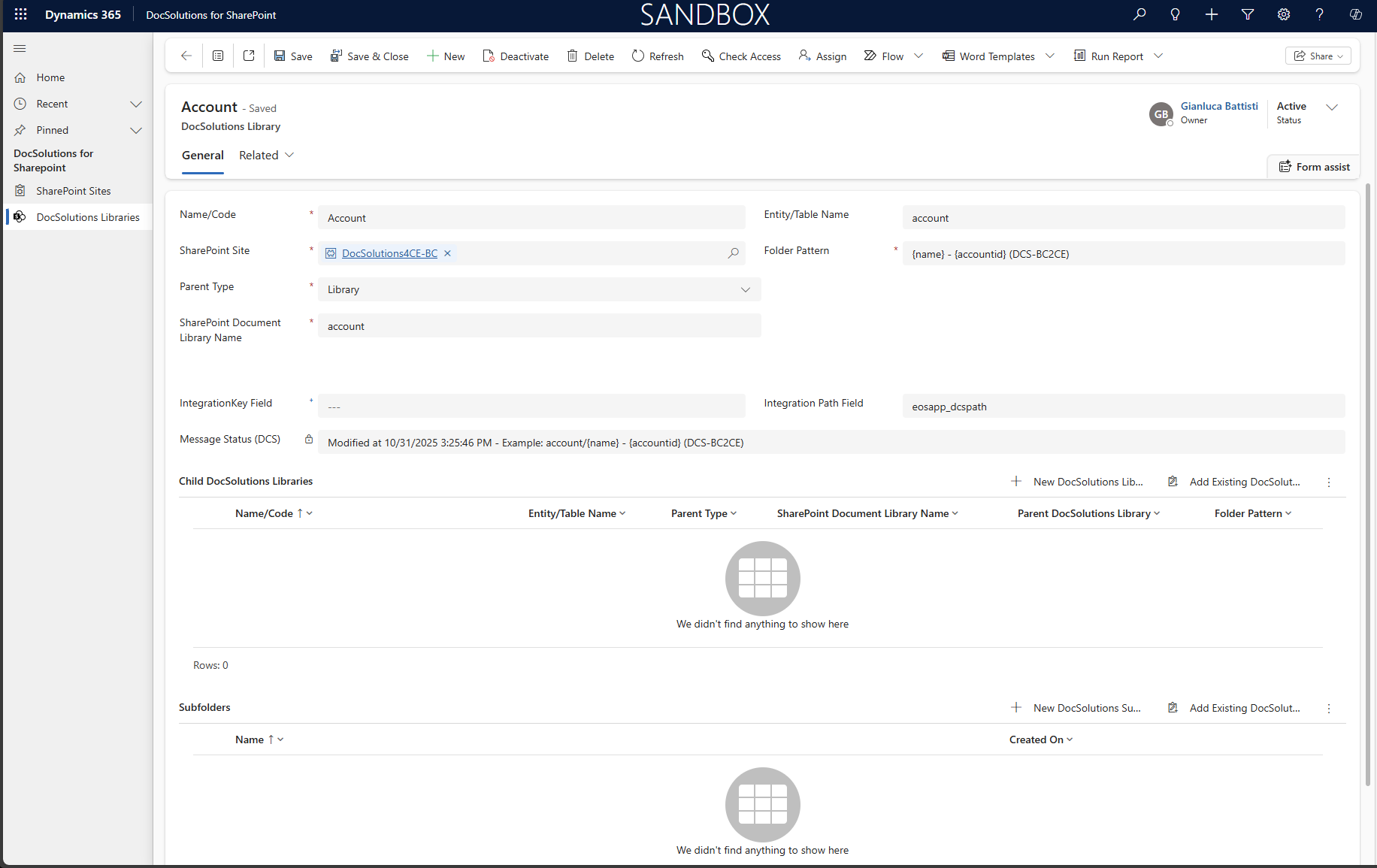
- Set Site and Library Name exactly as in CE.
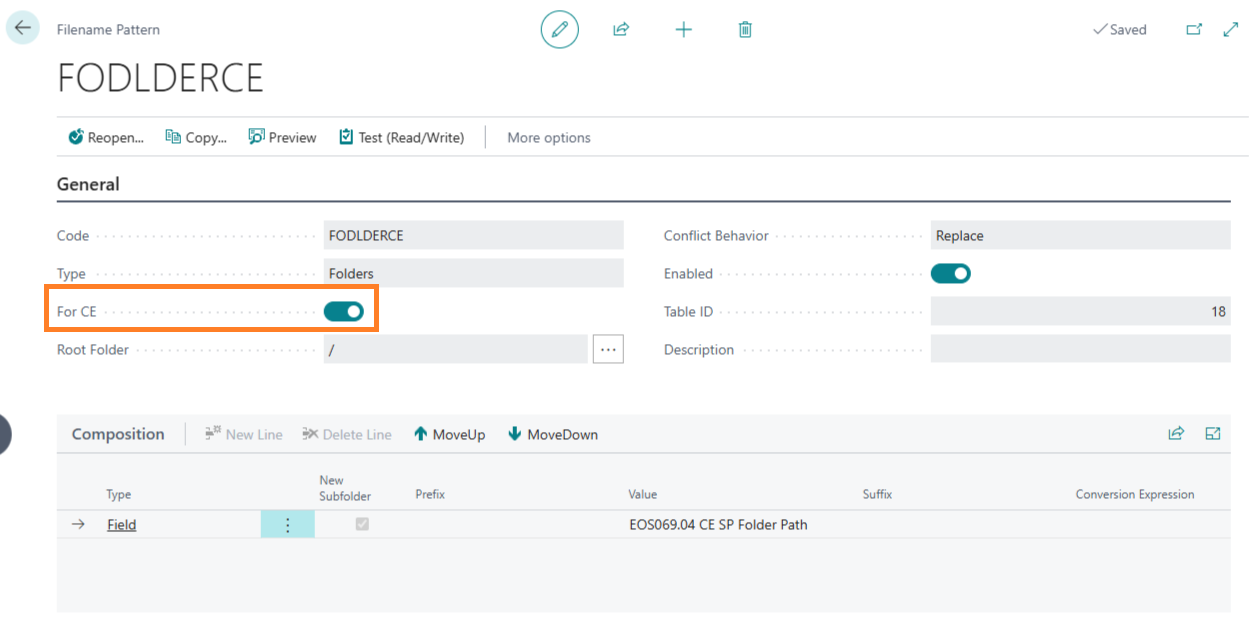
- Folder Pattern: enable the flag that prefixes the mandatory “CE Folder Path” (auto‑inserted) and complete any additional structure.
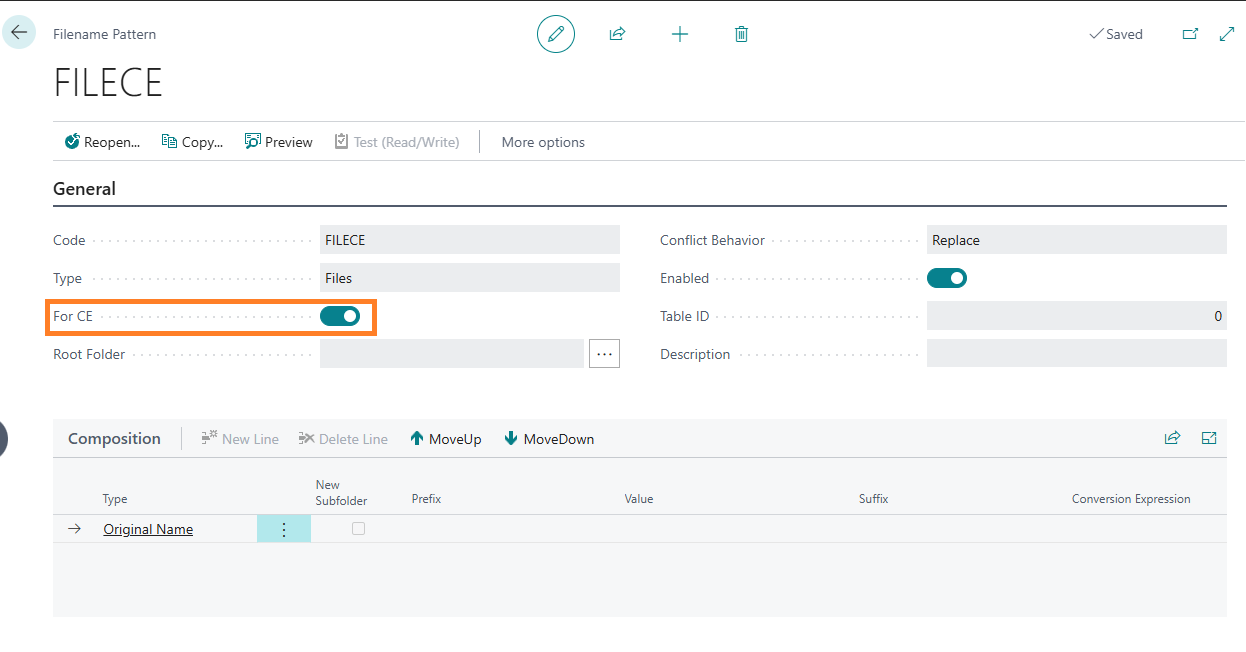
- Filename Pattern: configure how files are resolved/looked up.
Bind to table
- On the Table (e.g., Customers), bind the newly created CE DocSolution Library.
- Keep the CE Folder Path field hidden for end users (default) or expose it for diagnostics only.
Operational check
- Open a synchronized Customer and verify in the DocSolution FactBox that CE files (e.g., Customer agreement) are available.
- Open/download/upload to validate permissions and path resolution.
Tips
- Keeping Site and Library aligned across CE and BC is essential to target the correct folder.
- With Storage = CE, the CE Folder Path is the root of the pattern in BC; do not remove or reorder it.
Feedback
Was this page helpful?
Glad to hear it! Please tell us how we can improve.
Sorry to hear that. Please tell us how we can improve.
EOS Labs -