Receipt printing
The app enables the issuance of sales, voids, and return commercial documents, as required by the Italian Tax Authority (Agenzia delle Entrate). After a sale is posted in LS Express, a specific record is created indicating that a commercial document needs to be printed. This record is then processed by Node-RED for the actual printing of the commercial document. Once the printing is completed, Node-RED updates the record by inserting the references to the processed commercial document and updating its status accordingly. To access and review the commercial documents printed as a result of a sale, you must run the “Fiscal Receipts” function, available from the “POS Sales History” page. In the list, you can view:
- the IP address of the fiscal printer
- the transaction amount
- the creation date and time
- the receipt status
- the payload
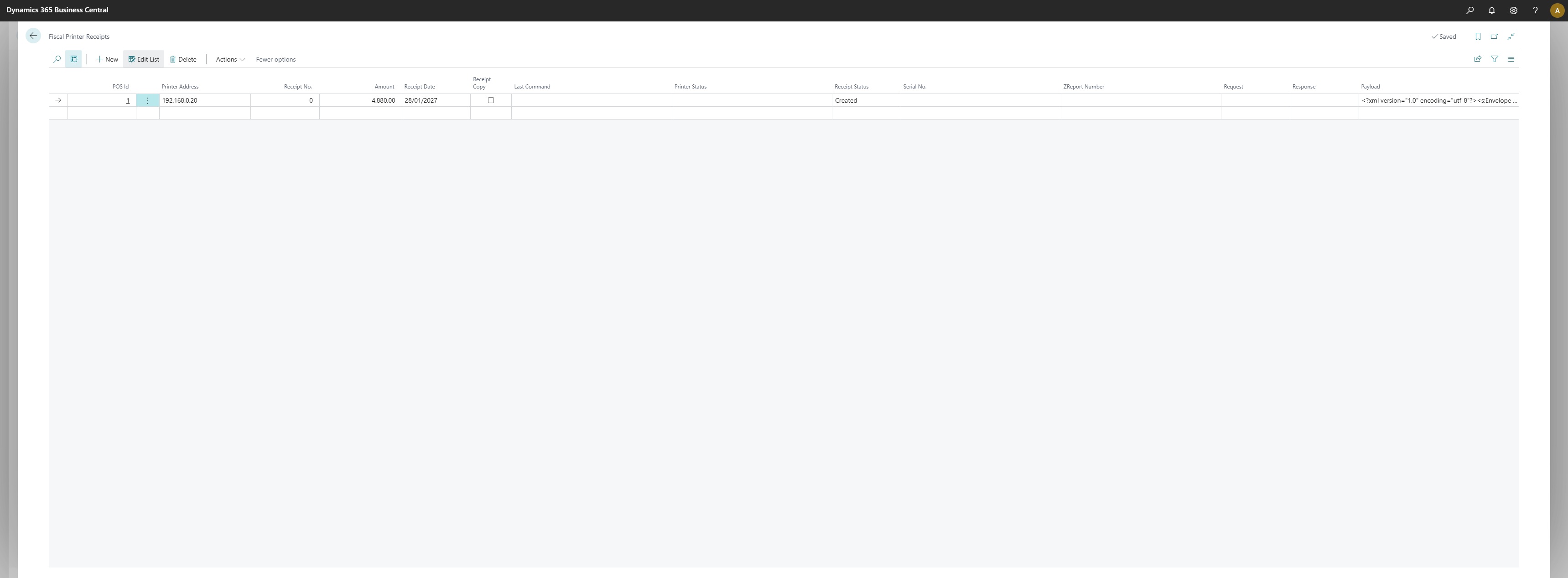
You can then display the payload on screen by running the “View Payload” function. Once the commercial document has been printed, the record will contain additional information such as:
- Receipt No.
- Last command: the last command executed by the fiscal printer
- Printer status: the status of the fiscal printer
- Receipt status: the result of the printing process
- Serial No.: the serial number of the fiscal printer that executed the print
- ZReport No.: the financial closure number (Z Report) in which the printed commercial document will be included
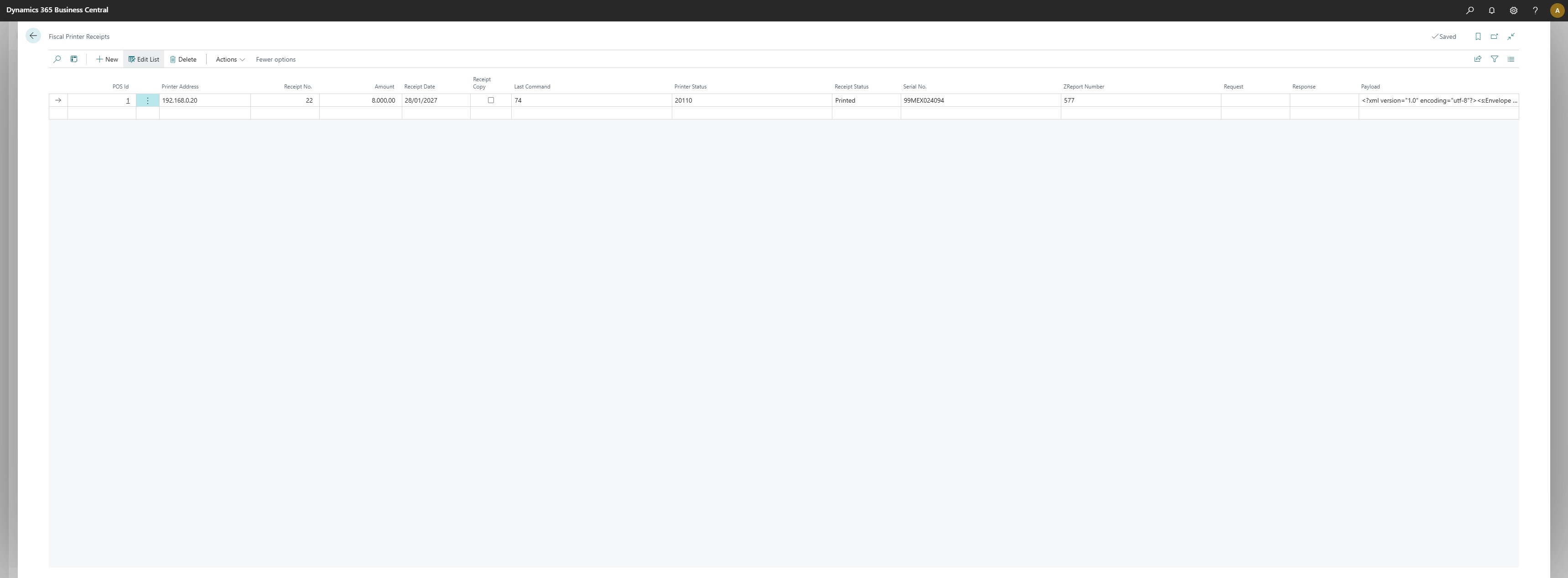
If the “Receipt Status” field shows “Error”, you must check the payload to identify the issue and, if necessary, retry printing the commercial document using the “Print Receipt” function available on the “POS Sales History” page.
Receipt Copy Printing
The app also allows printing a copy of a previously issued commercial document by reading the fiscal printer’s electronic journal. To print a copy, you can (alternatively):
- Run the “Print Receipt Copy” function from the “POS Sales History” page
- Run the “Print Slip” function from the “POS Sales History” page
- Use the “Reprint Last Receipt” function from the POS sales screen
Regardless of the function executed, a new record will be inserted into the Fiscal Receipts table, with the “Receipt Copy” flag set accordingly.
Fiscal void and fiscal return
The app allows issuing cancellation commercial documents and return commercial documents through the fiscal printer. The procedure for handling both document types requires the use of the LS Express standard function “Return Items”, available on the “POS Sales History” page.
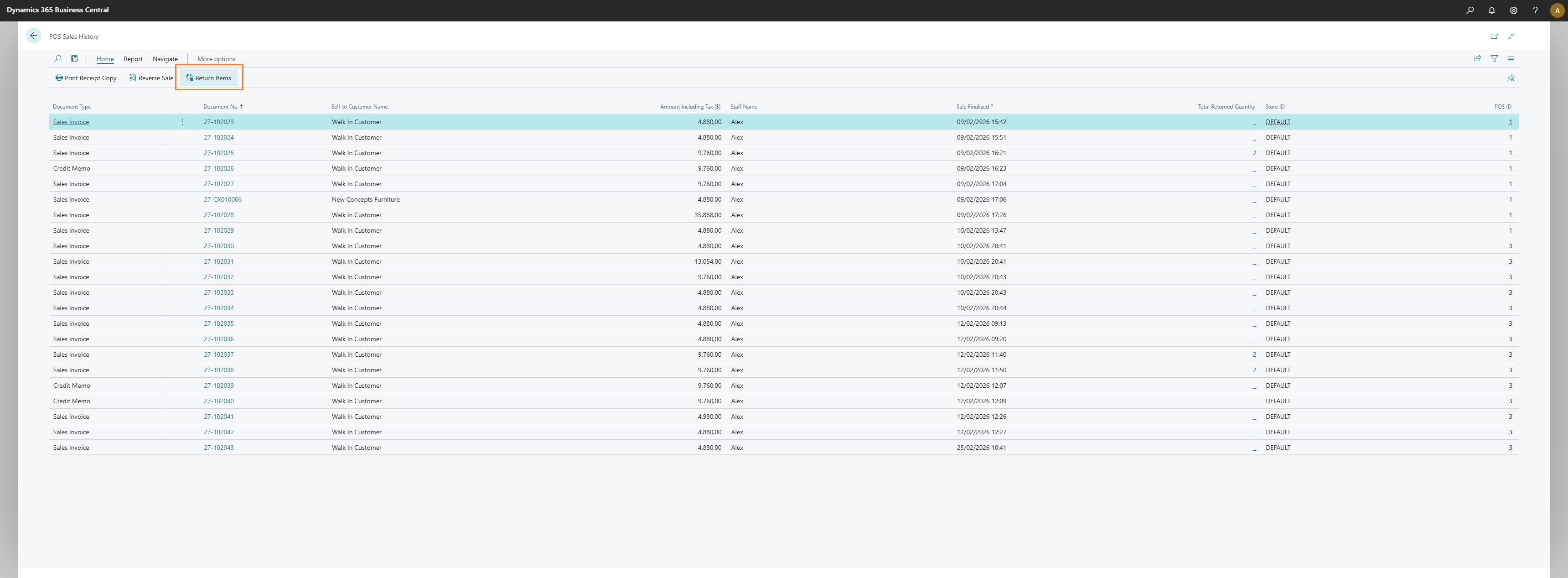
When the function is executed, the app will prompt the user to select whether they are performing a cancellation operation or a return operation.
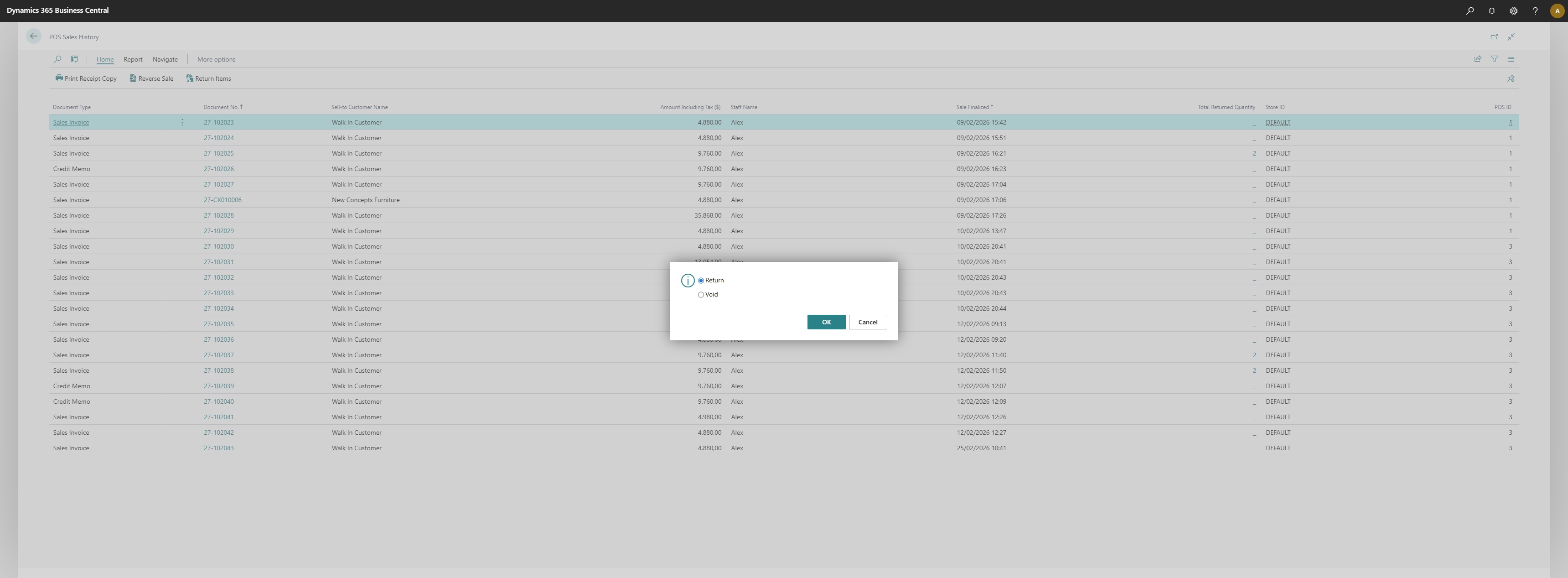
Regardless of the selected option, the process will then follow the standard LS Express workflow.
Invoicing
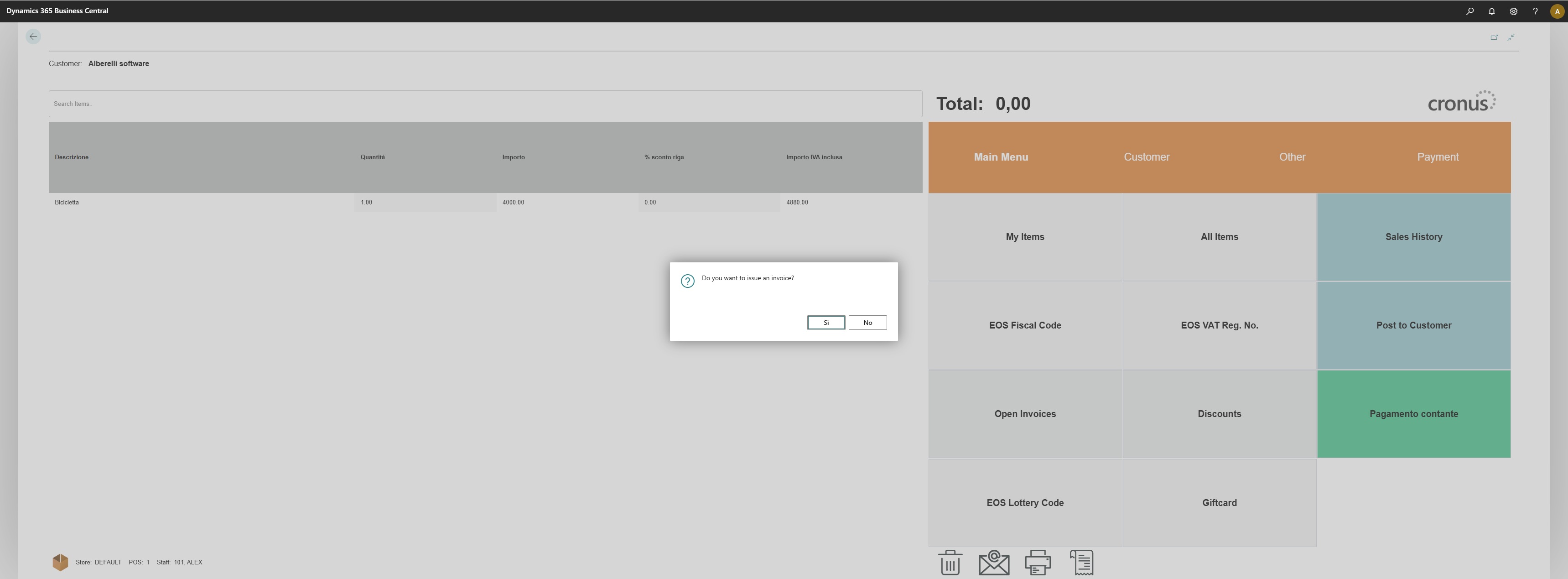
If a customer other than the “Walk‑in” customer defined in the setup is selected at the POS, and if invoice management is enabled, the system will allow the creation of sales invoices and sales credit memos without issuing the related commercial document through the fiscal printer. If the “Active Invoice Management” flag is enabled in the Sales Profile setup in use, and the “Invoice Management Type” field is set to “Request Invoice”, then at the end of a POS sale the system will prompt the user to confirm whether they want to issue a sales invoice or a sales credit memo. If the user selects “No”, the system will issue a sales commercial document instead.
Other POS functions
The app provides additional POS functions such as:
- entering the customer’s tax code (Codice Fiscale)
- entering the customer’s VAT number
- entering the lottery code for the “Receipt Lottery” (Lotteria degli Scontrini)
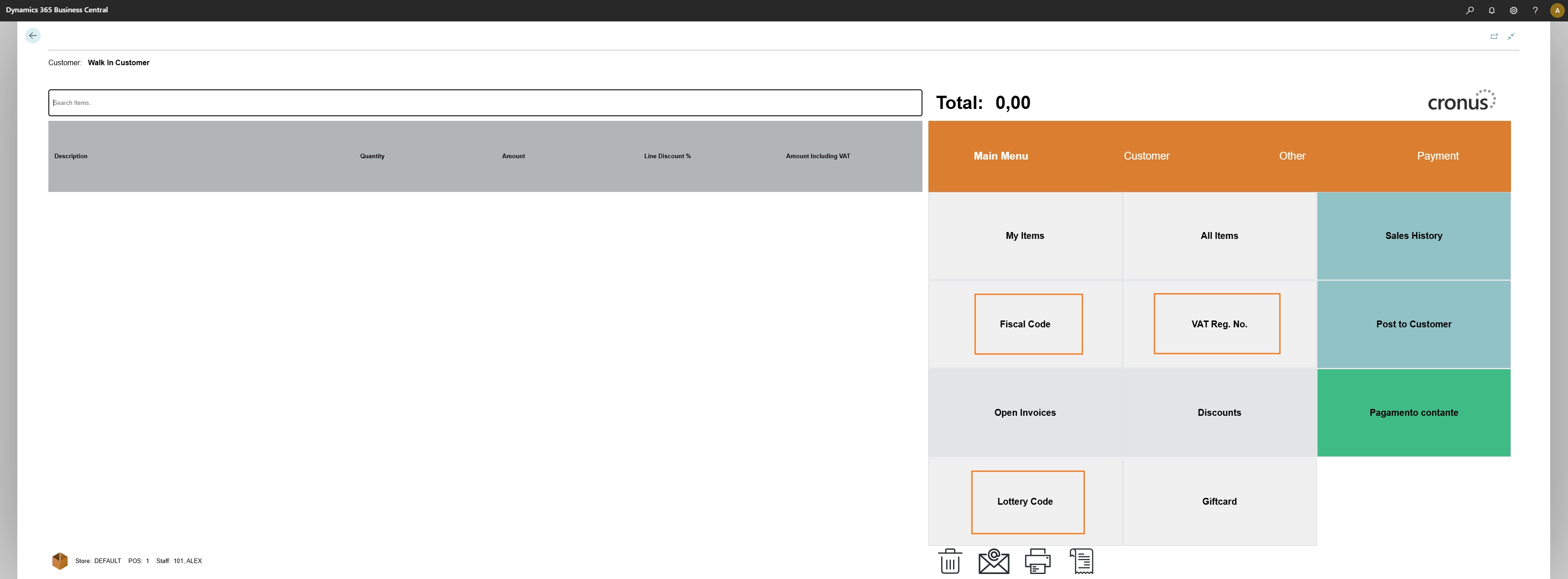
All entered data is then included in the sales commercial document, in accordance with the requirements of the Italian Tax Authority (Agenzia delle Entrate).
Feedback
Was this page helpful?
Glad to hear it! Please tell us how we can improve.
Sorry to hear that. Please tell us how we can improve.