Sales profile
Within the Sales Profile Setup card, several new setup fields have been added.
Additional Setup
Printing
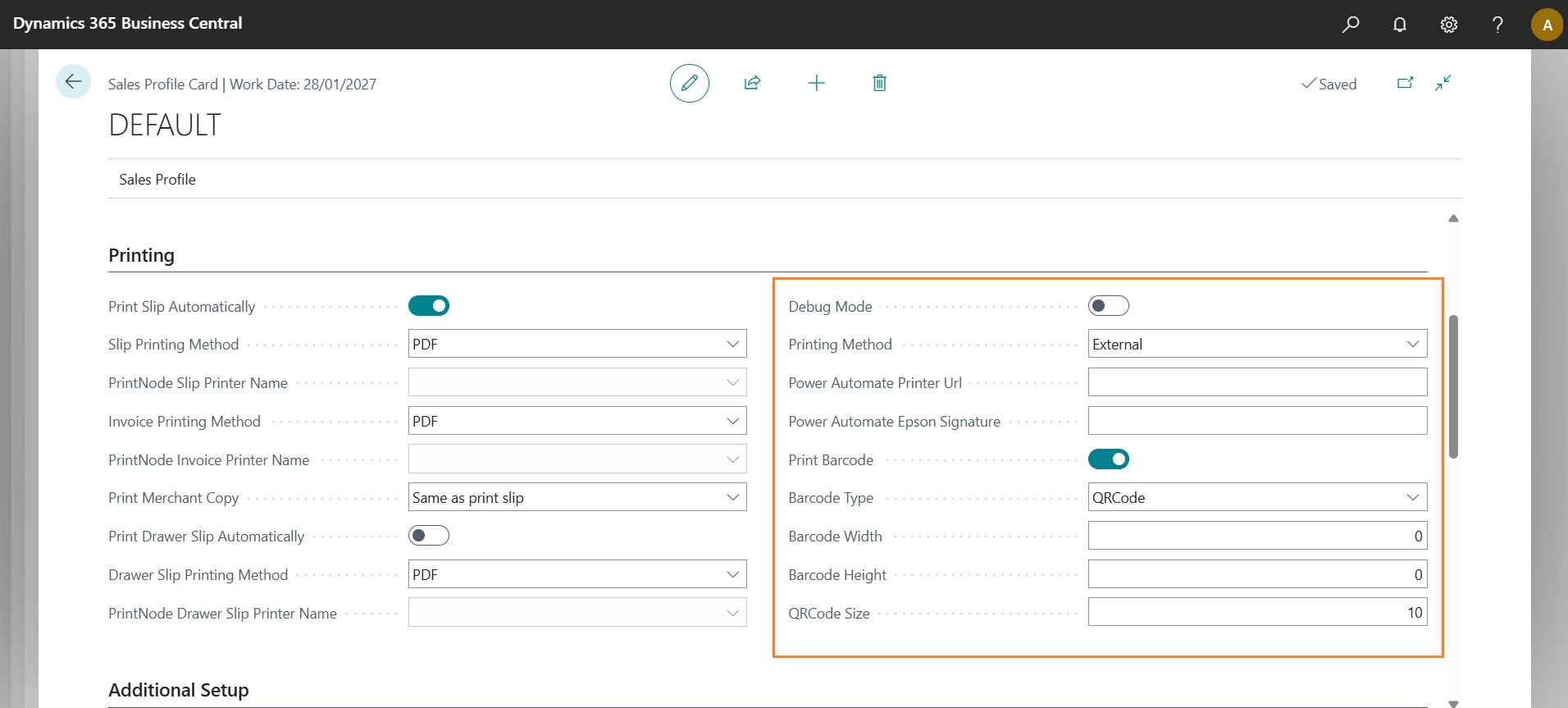
The settings available in the “Printing” section control additional functionalities beyond the standard LS Express features.
- Debug Mode: enables the debug mode for printing through the fiscal printer. When generating a print request for the fiscal printer, the system will display the XML request on screen.
- Printing Method: this field can take three different values:
- Power Automate: prints the fiscal receipt via a Power Automate flow (currently not supported) Node Red: prints the document through a web service exposed by Node-RED (currently not supported)
- External: prints the document through a Node-RED flow that calls LS Express web services
- Power Automate Printer Url: URL of the Power Automate flow
- Power Automate Epson Signature: signature of the Power Automate flow
- Print Barcode: enables barcode printing inside the fiscal receipt issued by the fiscal printer
- Barcode Type: this field can take two values:
- CODE128: prints the barcode in Code128 format
- QRCode: prints a QR code
- Barcode Width: when the “Barcode Type” field is set to CODE128, this value specifies the barcode width
- Barcode Height: when the “Barcode Type” field is set to CODE128, this value specifies the barcode height
- QRCode Size: when the “Barcode Type” field is set to QRCode, this value specifies the QR code size
Additional Setup
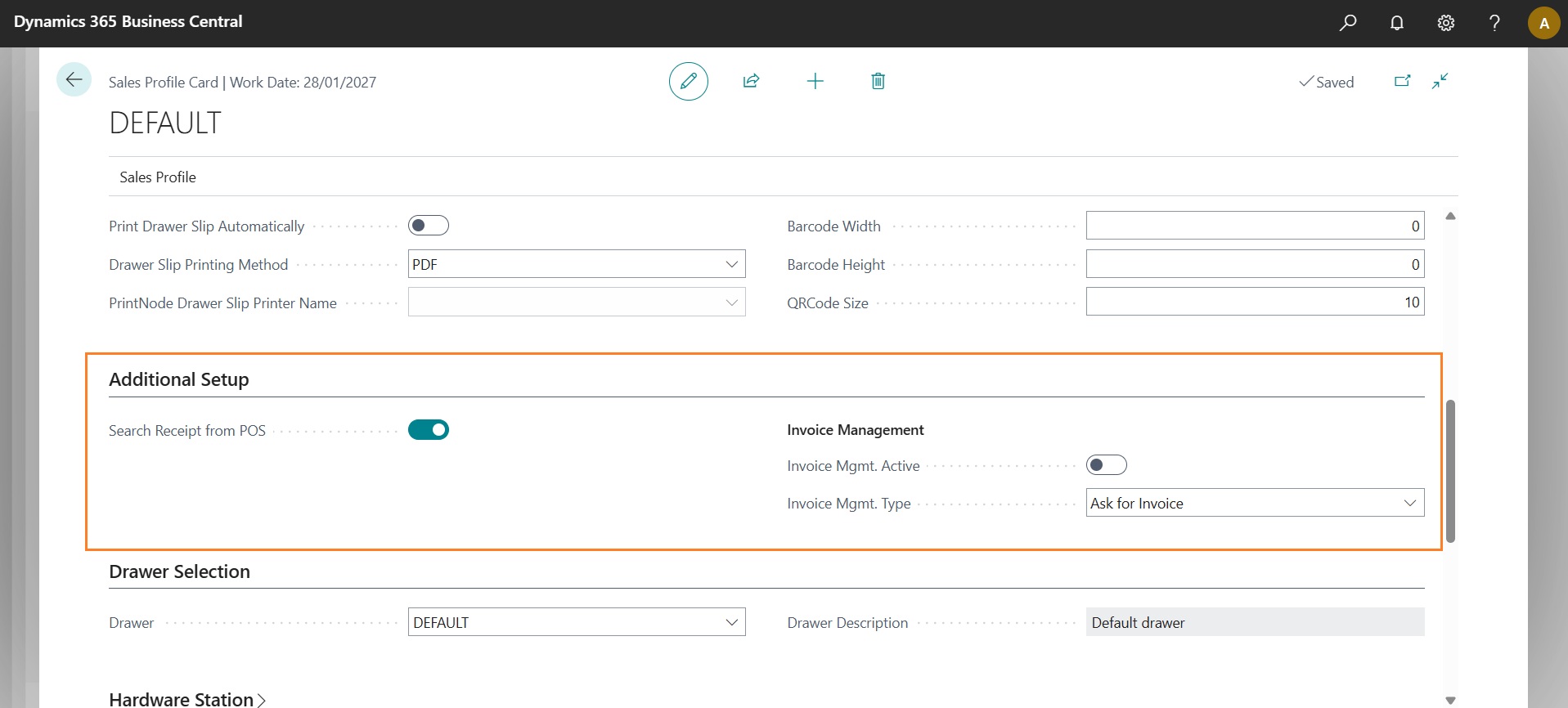
Further settings not directly related to fiscal receipt printing have been added under the “Additional Setup” section.
- Search Receipt from POS: allows searching for a previously posted sales transaction by entering the receipt number (barcode or QR code) directly from the POS sales screen
- Sales Invoice Management: enables issuing sales invoices directly from the POS sales screen by selecting a customer different from the default walk‑in customer
- Invoice Handling Type: This field can take two values:
- Request Invoice: The system asks for user confirmation before issuing a sales invoice directly from the POS sales screen
- Create and Post: The system does not request confirmation; it automatically creates and posts the sales invoice without printing a fiscal receipt from the fiscal printer
Feedback
Was this page helpful?
Glad to hear it! Please tell us how we can improve.
Sorry to hear that. Please tell us how we can improve.
EOS Labs -