Leasing Contracts
The leasing contract is the central object of the module: it collects the contract’s master data, the linked goods and the installment schedule.
Creating and managing the contract header
Every contract is created by first choosing a contract type, which determines the number series for the internal number and the G/L accounts to be used. One or more leased goods are then linked to the contract header, and, at a later stage, the installment lines generated by the depreciation schedule calculation.
Prerequisites
- At least one Leasing Contract Type configured
- The leased goods to be linked already recorded in the master data
- A vendor representing the leasing company.
Usage
Creating the contract
- Search for Leasing Contracts (LCM) and click New.
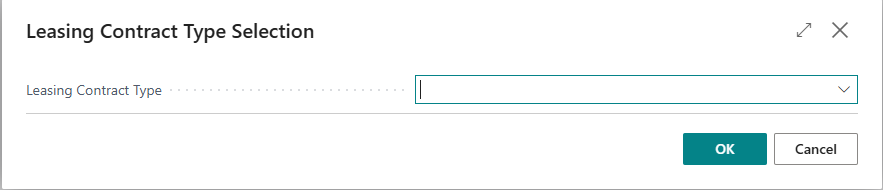
- A Leasing Contract Type Selection window is automatically proposed: choose the type and confirm. The contract’s internal number is assigned automatically from the number series of the selected type.
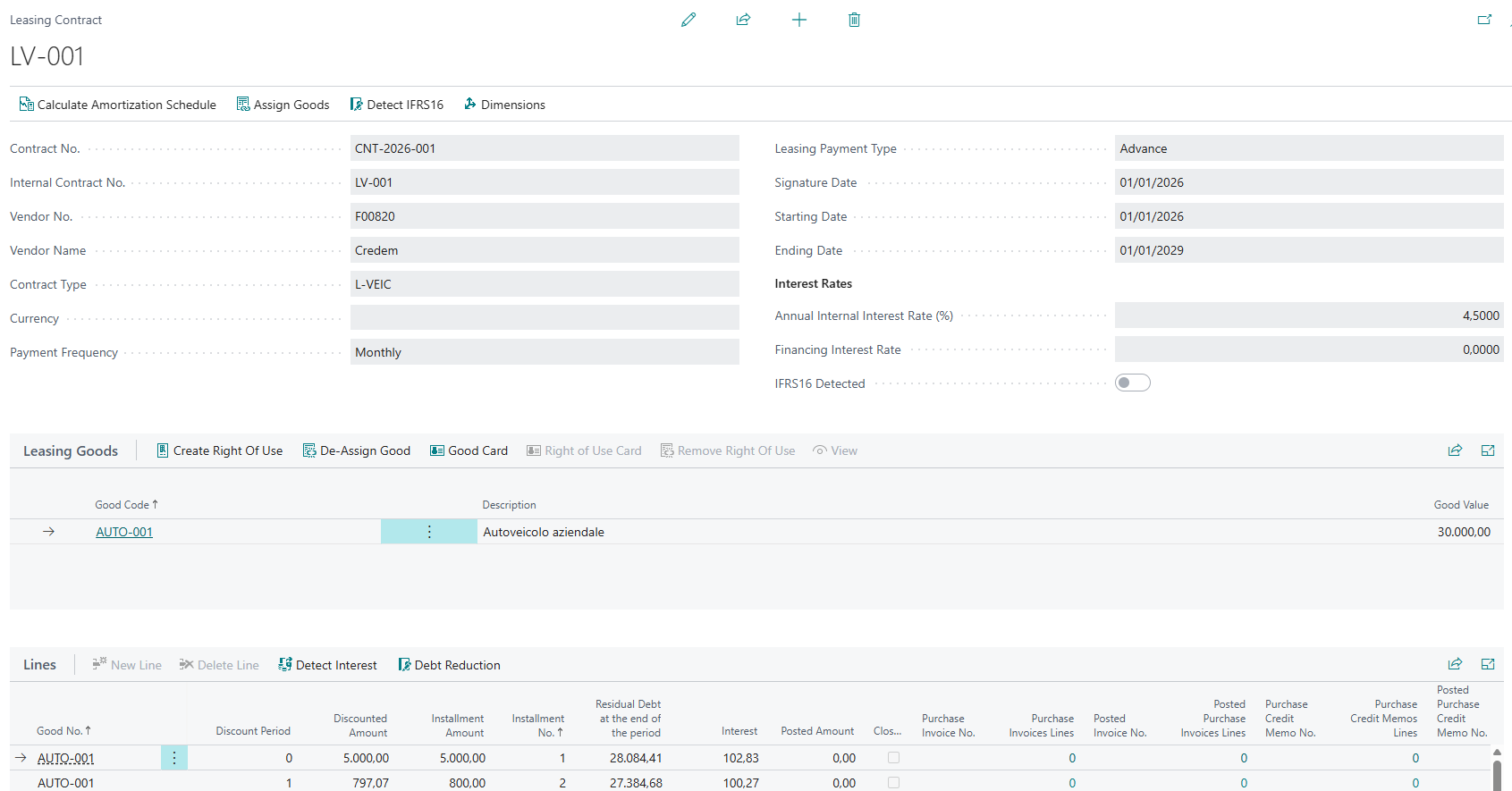
- Fill in the contract header:
- Contract No.: official number assigned by the leasing company;
- Vendor No.: leasing company (until this is filled in, the Goods and Lines sections cannot be edited);
- Signature Date and Starting Date: the starting date determines when the depreciation of the fixed asset and the installment schedule begin;
- Payment Frequency: Monthly or Quarterly;
- Leasing Payment Type: Advance or Arrears, i.e. whether the payment is due at the beginning or at the end of each period;
- Annual Internal Interest Rate (%): implicit rate used for the IFRS16 calculation;
- Financing Interest Rate (optional): used only for the parallel OIC calculations.
- The Ending Date of the contract is calculated automatically once the installment schedule has been generated (see the Calculating the depreciation schedule paragraph); it can nevertheless be changed manually at any time: in that case the depreciation ending date of the linked Right of Use fixed assets is also updated.
Assigning goods
- From the contract card, click Assign Goods.
- Select one or more goods not yet assigned to other contracts and confirm.
- To remove an already assigned good, use De-Assign Good: this action is available only if no contract lines have been generated yet for the contract.
Managing dimensions
From the contract card, using the Dimensions action (Alt+D), the cost centers and other analysis dimensions of the contract can be set. If the contract already has contract lines, the system asks whether the change should be propagated to all existing lines.
Additional information
The Goods section of the contract also offers the Good Card and Right of Use Card actions (the latter is enabled only after the fixed asset has been created) for quick access, as well as Create Right Of Use and Remove Right Of Use, described in the Creating the Right-of-Use (RoU) fixed asset paragraph.
Calculating the amortization schedule
The depreciation schedule defines the amount, the date, and the composition (principal/interest) of each individual installment of the contract, using the effective interest rate method required by IFRS16.
The calculation is based on “blocks” of homogeneous installments (for example: an initial deposit, a number of ordinary installments, a final redemption installment). For each block, the number of installments and the amount of each installment are specified; the system then automatically generates all the installment lines with their present values, interest and progressive debt balances.
Usage
- From the contract card, click Calculate depreciation Schedule.
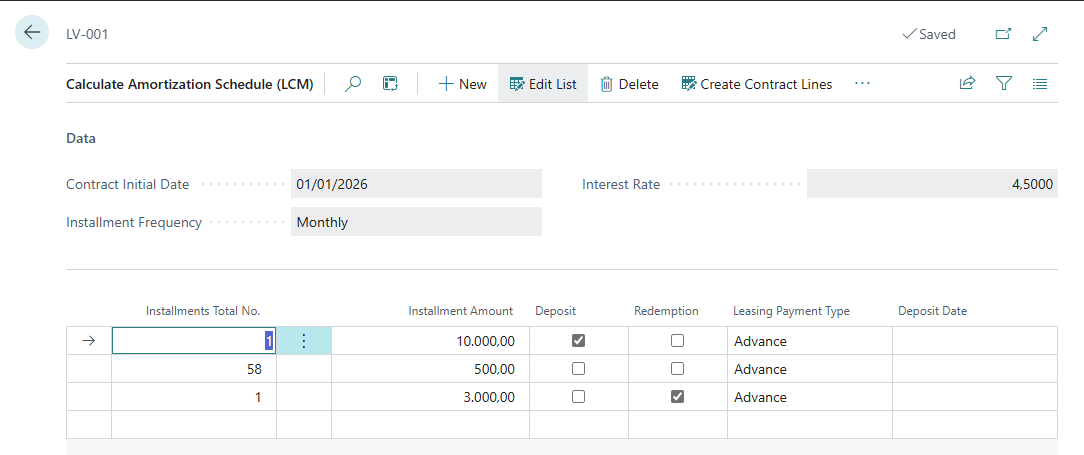
- On the page that opens, the contract’s Contract Initial Date, Installment Frequency and Interest Rate are shown for reference.
- Enter a line for each block of homogeneous payments, specifying:
- Installments Total No. for the block;
- Installment Amount;
- the Deposit flag, if the line represents an initial advance payment (with the related Deposit Date);
- the Redemption flag, if the line represents the final payment to purchase the good.
- Use the Insert Line Above Current Line / Insert Line Below Current Line actions to add further blocks in the desired position.
- Click Create Contract Lines: the system generates the final installment lines and closes the calculation page.
Example
For a 60-month lease with an initial deposit, 58 ordinary installments and a final redemption:
| Block | Installments Total No. | Installment Amount | Deposit | Redemption |
|---|---|---|---|---|
| 1 | 1 | 10,000.00 | Yes | No |
| 2 | 58 | 500.00 | No | No |
| 3 | 1 | 3,000.00 | No | Yes |
The system generates the installment lines always in the following order: first the deposit, then the ordinary installments, and finally the redemption installment. For each installment it calculates:
- the Discounted Amount (used for IFRS16 detection and for the fixed asset value);
- the Liability Before Payment and Liability After Payment;
- the Interest for the period;
- the Debt at the end of the period;
- in parallel, the Share Capital OIC and Interest OIC amounts according to the OIC method.
The contract’s Ending Date is updated automatically based on the last generated installment. If the contract includes multiple goods, each installment is split in proportion to the value of each good.
Additional information
- When the schedule is regenerated, installment lines that are not yet closed and not linked to purchase documents are deleted and recreated; already closed lines remain unchanged.
- The total number of installments cannot be reduced below the number of already closed installments, and the amount of a block cannot be changed if it contains closed installments.
Creating the Right-of-Use (RoU) fixed asset
For every leased good, IFRS16 requires recognizing on the balance sheet a fixed asset representing the right to use the good for the duration of the contract.
The module automatically creates a dedicated fixed asset for each good linked to the contract, complete with depreciation book, dimensions and fixed asset classification, without requiring manual configuration of the fixed asset itself.
Prerequisites
- The installment schedule must not have been generated yet for the contract (the action is not available if contract lines already exist).
- The good must be linked to a contract and must not already have a fixed asset assigned.
- The contract type must have Leasing Class Code, Leasing Subclass Code and Right of Use Series No. filled in.
- The Setup must have the Fixed Asset Depreciation Book Code filled in.
Usage
- From the contract card, in the Goods section, select one or more goods.
- Click Create Right Of Use.
- The system creates a fixed asset for each selected good and opens the list of the created fixed assets.
For each good, the following is automatically created:
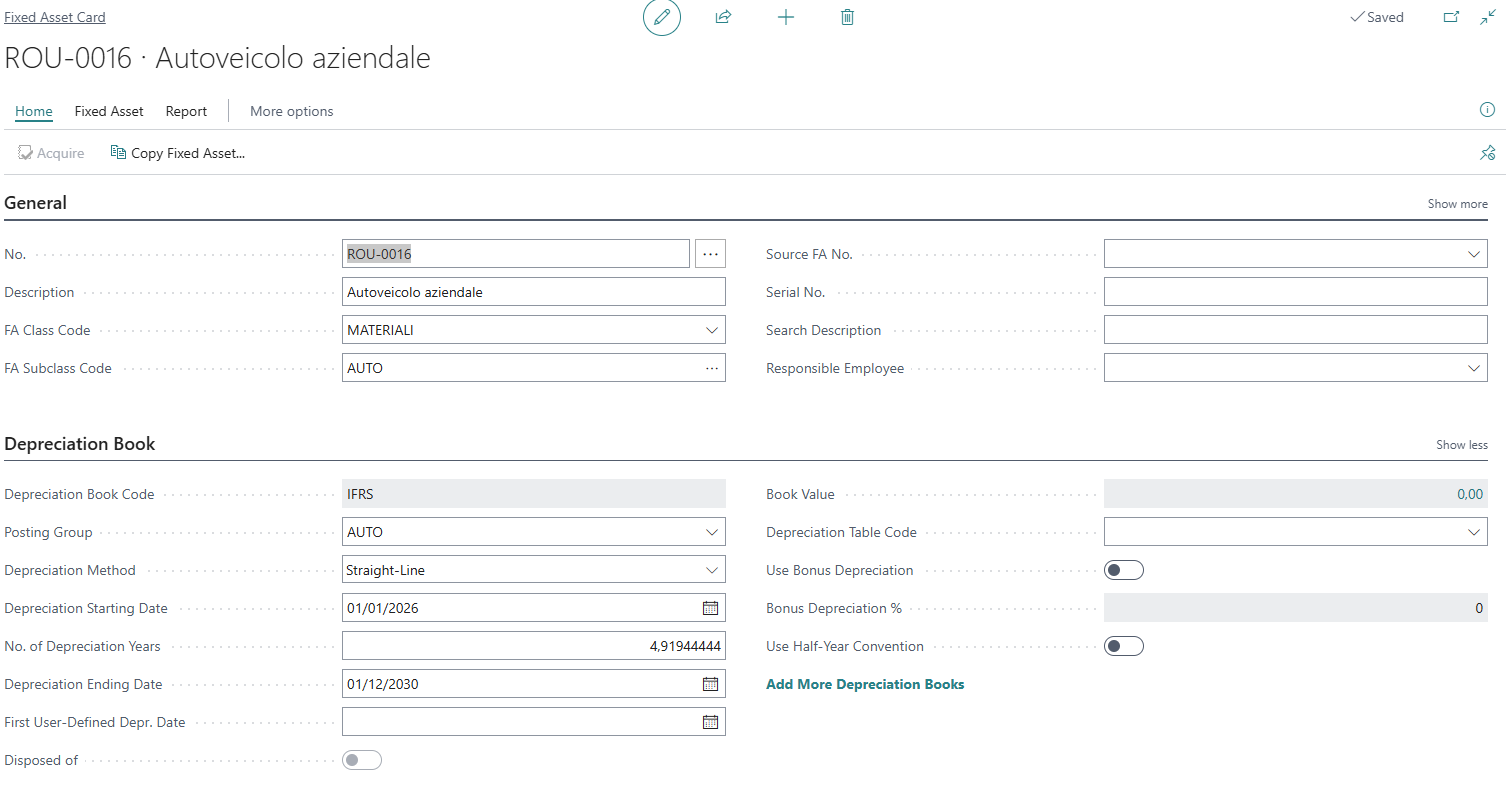
- a new fixed asset, numbered from the contract type’s Right of Use series, with description copied from the good, class and subclass from the contract type, and global dimensions inherited from the contract;
- the entire dimension set of the contract, copied as default dimensions of the fixed asset;
- a depreciation book entry on the fixed asset, with depreciation starting date equal to the contract’s starting date, depreciation ending date equal to the contract’s ending date, and straight-line depreciation method;
- the good is updated with the reference to the newly created fixed asset.
Additional information
- The Remove Right Of Use action, available from the Goods section of the contract, allows unlinking the fixed asset from the good without deleting the fixed asset itself, for example in case of an incorrect assignment. Confirmation is requested before proceeding.
- If the fixed asset is instead deleted through standard fixed asset management, the link on the good is cleared automatically.
IFRS 16 accounting detection
This phase covers the generation of the accounting entries required by IFRS16: the initial recognition of the debt and the fixed asset, and the two periodic entries for interest detection and debt reduction.
All entries are generated as lines in a general journal: the user must always review them and post them manually; no entry is posted automatically.
Prerequisites
- Leasing Setup (LCM) filled in with the posting journals.
- Contract type with the G/L accounts filled in.
- For the initial recognition: the Right of Use fixed asset already created for each good of the contract.
Usage
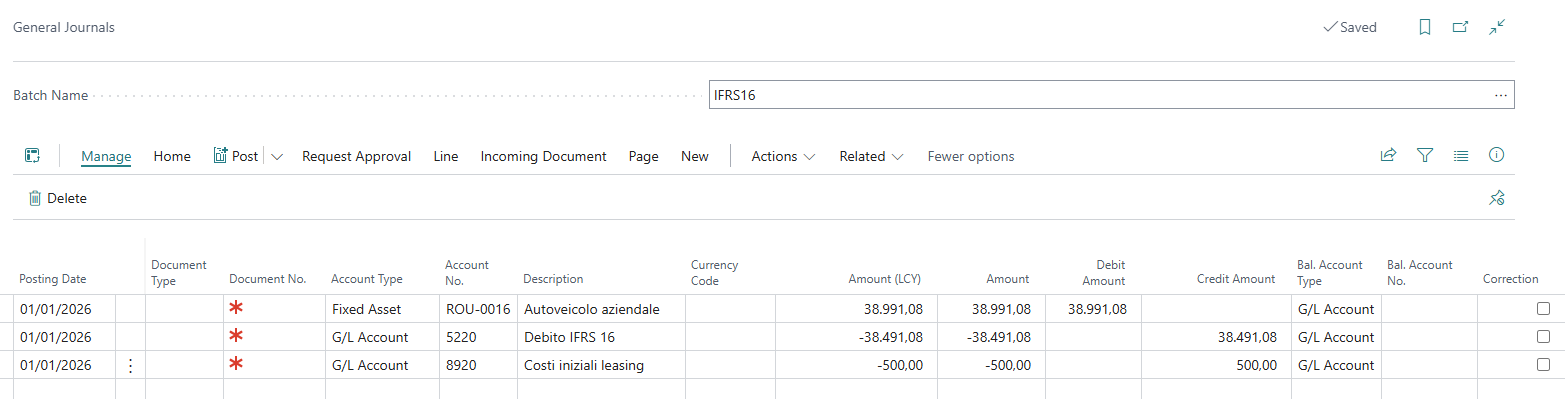
Initial IFRS16 recognition
- From the contract card, click Detect IFRS16 (or run the report of the same name on multiple contracts at once, filtering by internal contract number).
- For each good of the contract, the following journal lines are generated:
DEBIT    Right of Use fixed asset        = Discounted Amount + Initial Costs
CREDIT   Detection IFRS16 Debt Account   = Discounted Amount
CREDIT   Initial Costs Account           = Initial Costs (only if present)
- The journal opens automatically with the generated lines: review them and post the batch.
- If IFRS16 has already been detected for the same contract, the system asks for confirmation before generating further lines, to avoid unintentional duplication.
The IFRS16 Detected flag on the contract header becomes active only when the fixed asset acquisition cost entry is actually posted, not simply by running the Detect IFRS16 action.
Periodic interest detection
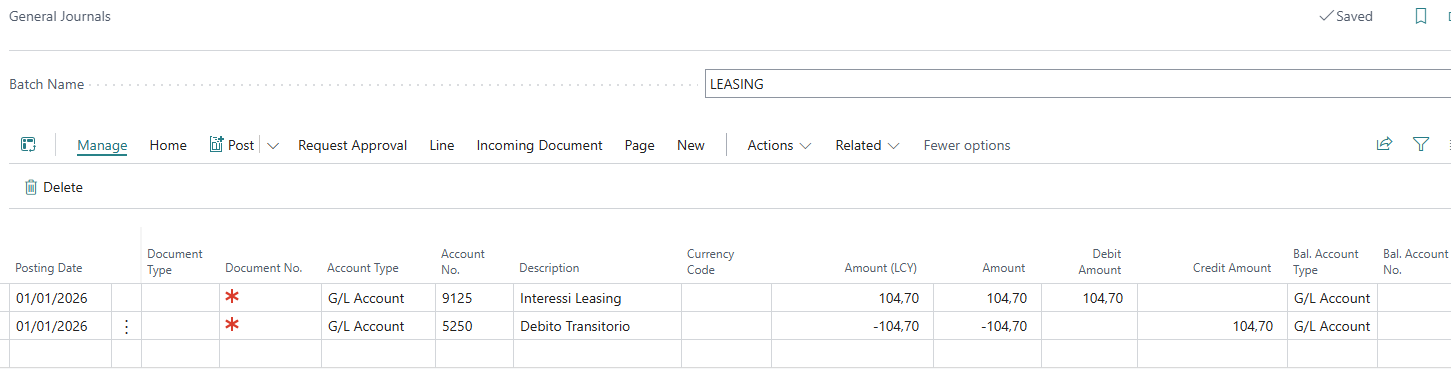
- From the contract’s Lines section, select one or more due installments and click Detect Interest (or use the Detect Interest batch report, which can be filtered by contract and by installment).
- For each installment, the following lines are generated:
DEBIT    Interests Account               = Interest of the installment
CREDIT   Transitory Debt Account         = Interest of the installment
- An installment for which interest has already been detected cannot be processed again: the system reports the issue.
- When the journal is posted, the installment’s Interest Detected flag is set automatically.
Riduzione del debito
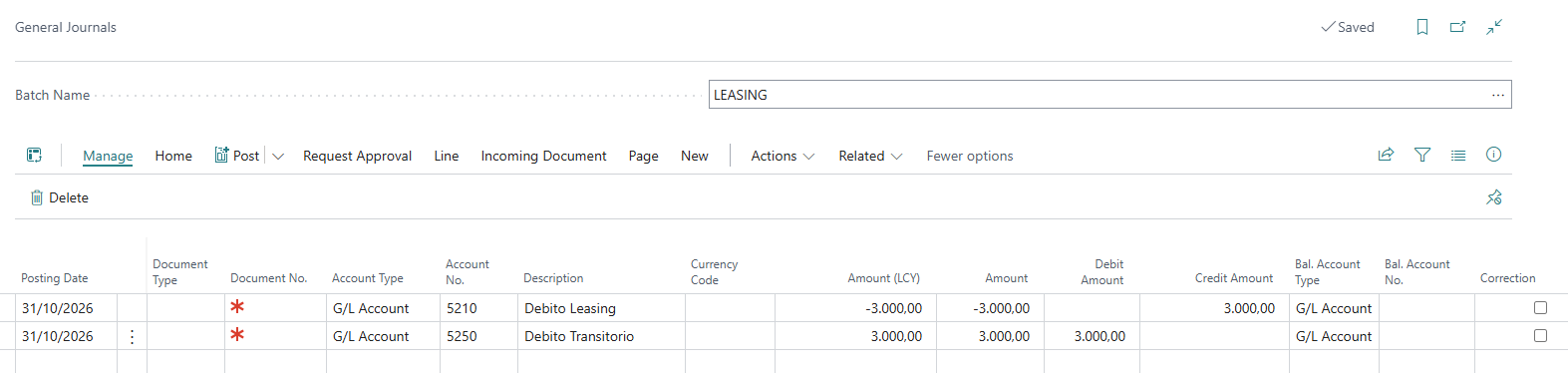
- From the contract’s Lines section, select one or more installments and click Debt Reduction (or use the Debt Reduction batch report).
- For each installment, the following lines are generated:
CREDIT   Debt Leasing Account            = Installment Amount (reduces the liability)
DEBIT    Transitory Debt Account         = Installment Amount (closes the transitory account)
- An installment whose debt has already been reduced cannot be processed again.
- When the journal is posted, the installment’s Debt Reduced flag is set automatically.
The three operations (interest detection, debt reduction and the purchase invoice) together produce the combined accounting effect of the installment: interest expense on the income statement, a reduction of the leasing debt, and a payable toward the vendor. The transitory account acts as a bridge between the entries and should net to zero once all three operations have been completed for the same installment.
Additional information
Both interest detection and debt reduction, when run from the contract lines, offer to inherit the accrual template set on the installment, if any.
Integration with purchase documents and general journals
The leasing installments must be matched against the documents with which the leasing company actually invoices the payments, in order to keep track of what has been paid against what is due under the schedule.
The module adds a Get Leasing Installments action on the purchase invoice lines, on the purchase credit memo lines, and on the general journal lines, allowing the contract’s installments to be automatically imported as document lines or journal lines.
Usage
From a purchase invoice
- Create a purchase invoice for the vendor (leasing company).
- On the lines, select Functions → Get Leasing Installments.
- Choose the contract (the list is filtered by the invoice’s vendor) and select one or more installments that are not yet closed.
- The system creates an invoice line for each selected installment, using the contract type’s Debt Leasing Account No., the installment amount, a description referencing contract/installment/good, and the dimensions inherited from the contract line.
From a purchase credit memo
Same procedure as for the invoice; in this case only installments that are already linked to a posted invoice are proposed, to allow reversals or corrections.
From general journals
The Get Leasing Installments action is also available on the standard general journal: after selecting a contract and one or more installments, the system creates journal lines using the Debt Leasing Account No. and, as the balancing account, the contract type’s Transitory Debt Account No..
When the document is posted, the contract’s installment line is updated automatically:
| Event | Effect on the installment line |
|---|---|
| Posting a purchase invoice | The posted invoice number and line are recorded; the Posted Amount is increased; the installment becomes Closed if the posted amount reaches the installment amount |
| Posting a purchase credit memo | The posted credit memo number and line are recorded; the Posted Amount is decreased; the installment becomes not Closed again if the posted amount falls below the installment amount |
| Posting from a general journal | The Posted Amount is increased; the installment becomes Closed if the posted amount reaches the installment amount |
Additional information
The same installment can be linked to several document lines (for example in case of partial invoicing across multiple invoices): the contract card shows the number of open and posted invoice/credit memo lines linked to each installment, as well as the number of G/L entries generated.
Fixed asset depreciation and contract closing
Throughout the life of the contract, the Right of Use fixed asset is depreciated using Business Central’s standard fixed asset functionality; at the end of the contract, it must be verified that all installments have been fully processed.
The value of the Right of Use fixed asset corresponds to the discounted amount of the installments plus any initial costs, and it is depreciated on a straight-line basis over the entire duration of the contract, from the starting date to the ending date.
Usage
Depreciation
- From the Right of Use fixed asset card, verify that the depreciation book is set up correctly (starting/ending dates matching the contract, straight-line method).
- Periodically run Business Central’s standard depreciation calculation functionality for the depreciation book configured in the Setup.
- Review and post the resulting depreciation entries.
Closing the contract
At the natural end of the contract, verify that:
- all installments are Closed;
- all installments have Interest Detected and Debt Reduced active;
- the residual debt of the last installment (Debt at the end of the period) is equal to zero.
In case of redemption, the good becomes the company’s property and the fixed asset is retained; in case of return, proceed with the standard fixed asset disposal functionality.
The leasing debt account and the transitory account net to zero, the Right of Use fixed asset is fully depreciated, and the contract can be considered closed.
Additional information
If the contract’s Ending Date is changed manually at a later time, the depreciation ending date of all Right of Use fixed assets linked to the contract is updated automatically.
Interest expense accrual (integration with Accruals and Simulated General Ledger (SGL))
When the EOS Accruals and Simulated General Ledger (SGL) APP is also installed in the Business Central environment, the Leasing module offers additional functionality to correctly spread the interest expense over time, avoiding the entire amount being posted only in the month the installment is due.
This integration is optional, the configuration fields (SGL Integration section) are located in the Leasing Setup (LCM).
Prerequisites
- EOS Accruals and Simulated General Ledger (SGL) APP installed.
- An accrual template already configured in the Accrual Management module.
- SGL Integration section filled in on the Leasing Setup (LCM).
Usage
Each installment line can have its own Accrual Template and accrual period (Accrual Starting Date / Accrual Ending Date), automatically calculated based on the contract’s frequency and payment type, but which can be changed manually.
When Detect Interest or Debt Reduction is run from a contract line, the system asks whether the accrual template set on the installment should be inherited: if confirmed, the interest entry is generated with the correct accrual dates for the automatic allocation of the cost to the relevant accounting periods.
In the Detect Interest and Debt Reduction batch reports, the Inherit Accrual Template option is available, applying the same behavior to all installments processed in bulk.
The interest expense is automatically spread over the relevant accounting periods, in line with the accrual accounting principle, reducing the manual effort of managing accruals.
Additional information
This functionality does not change the IFRS16 depreciation schedule calculation logic in any way: it only affects how the already calculated interest entry is allocated over time for accounting purposes.
Available reports
The module provides three batch processes to handle multiple contracts or multiple installments at once, avoiding the need to repeat the same actions individually from each contract card.
| Report | Function | Available filters |
|---|---|---|
| Detect IFRS16 (LCM) | Generates the initial recognition entries in bulk for the selected contracts | Internal Contract No. |
| Detect Interest (LCM) | Generates the interest detection entries in bulk for the selected installments | Internal Contract No., Installment No., “Inherit Accrual Template” option |
| Debt Reduction (LCM) | Generates the debt reduction entries in bulk for the selected installments | Internal Contract No., Installment No., “Inherit Accrual Template” option |
| Simply search for the report name in the search bar and set the desired filters (for example, a specific contract number using the filter field with guided search). | ||
| Once complete, the system displays the number of processed records and automatically opens the journal containing the generated lines. |
All generated lines are routed to the same registration journal used by the individual actions on the respective records; the user must always verify and post them manually.
FAQ and special cases
This paragraph collects the most frequently asked questions and the most common error messages that users may encounter while using the module.
Frequently asked questions
| Question | Answer |
|---|---|
| Can a single contract include multiple goods? | Yes. Each good will have its own Right of Use fixed asset, and installment amounts are split in proportion to the value of each good. |
| Can I change the schedule after it has been generated? | Installment lines that are not yet closed and not linked to purchase documents are deleted and recreated when the schedule is recalculated; already closed lines remain unchanged. |
| Can I delete a good that is linked to a contract? | No. It must first be unassigned from the contract, which is only possible if no installment lines exist yet. |
| Are the entries posted automatically? | No. Every function only generates lines in the posting journals; posting must always be confirmed manually by the user. |
| How do I check the status of an installment? | From the Lines section of the contract card, checking the Closed, Interest Detected, Debt Reduced flags and the Posted Amount. |
| Does the module support the Italian accounting standards (OIC)? | Yes: the contract lines also show, in parallel, the Share Capital OIC and Interest OIC amounts calculated with the OIC method. |
| Can I undo a Right of Use fixed asset link by mistake? | Yes, using the dedicated action in the Goods section of the contract, after confirmation; the fixed asset itself is not deleted. |
Common errors
| Message | Cause | Solution |
|---|---|---|
| “Good X is linked to fixed asset Y” | Attempt to create a second Right of Use for a good that already has one | Check the already linked fixed asset from the good card |
| Missing Fixed Asset Depreciation Book Code | Incomplete Setup | Fill in the depreciation book in Leasing Setup (LCM) |
| Missing number series | Incomplete contract type | Fill in the missing number series on the Leasing Contract Type card |
| “Installment is in document…” | Attempt to delete an installment line linked to a purchase document (open or posted) | Delete the line from the document first; lines already linked to posted documents can never be deleted |
| “Interest Detected must be No” | Attempt to detect interest again for an installment already processed | Check the flag on the installment line |
| “Debt Reduced must be No” | Attempt to reduce the debt again for an installment already processed | Check the flag on the installment line |
| “There are lines for contract X” | Attempt to de-assign a good or create a Right of Use while installment lines already exist | Delete the open installment lines that are not linked to documents first |
| “Installments Total No. cannot be lower than N” | Attempt to reduce the schedule below the number of already closed installments | Already paid installments cannot be modified |
Feedback
Was this page helpful?
Glad to hear it! Please tell us how we can improve.
Sorry to hear that. Please tell us how we can improve.